
 Product guide
How to use FlowForge: documents and PDFs from Google Sheets
A step-by-step guide to FlowForge with pictures of every screen: pick your sheet and tabs, match a Doc or Slides template, check the rows, then make and email one document for each row.
- Four steps: Template, Rows, Email, Review
- Several tabs connected automatically, rules first, AI only for what is left
- Saved flows, reports and what to do when something goes wrong
Section 1
What FlowForge does
FlowForge turns the rows of a Google Sheet into finished Google Docs, Slides and PDFs, and can email each one to the right person. You design the document once; FlowForge makes one copy for every row.
What this covers
- Invoices and quotations: one invoice per customer, with the line items filled in.
- Certificates and letters: one certificate or offer letter per student or employee.
- Everything is created in your own Google Drive. Your sheet is never changed except for a status next to each row.
- It runs inside Google Sheets, Docs and Slides as a sidebar. There is nothing to install on your computer.
Step-by-step
Step 1: Pick your sheet and its tabs
Tell FlowForge which spreadsheet holds your data and tick the tabs you want to use.
Step 2: Pick your Google Doc or Slides template
A template is a normal Doc or Slides file with {{markers}} where each row's values should go, for example {{Name}} or {{Invoice No}}.
Step 3: Choose which rows, and what to make
All new rows, or only the ones you select. A Doc, a PDF, or both.
Step 4: Review, then create
FlowForge checks every row first, shows what is blocked and why, and makes a sample before it makes the rest.
Before you move on
- ✓ A Google Sheet with a header row (column names in row 1)
- ✓ A Doc or Slides file with {{markers}}, or let the AI place them for you
- ✓ A Google account
Section 2
Open FlowForge and start
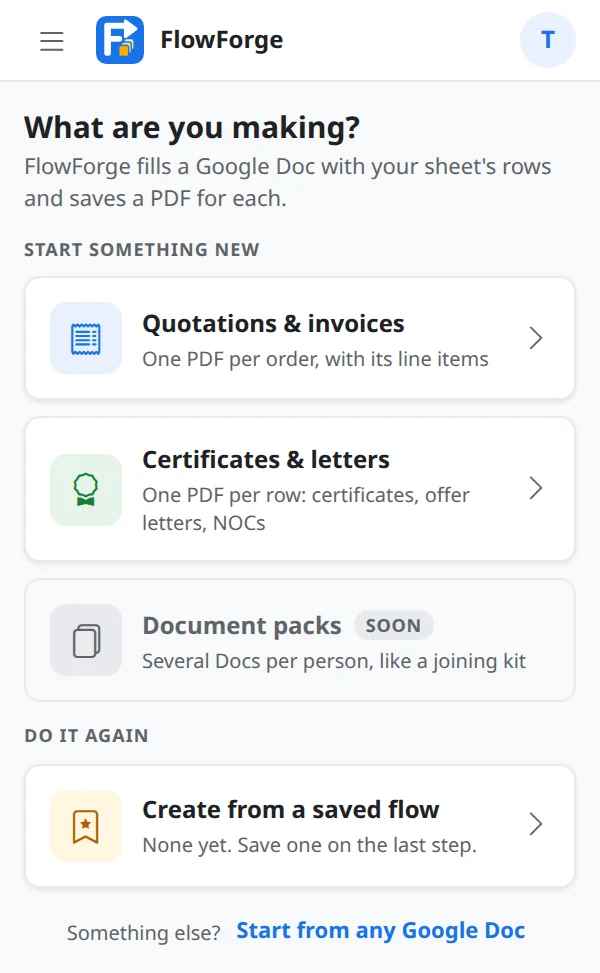
Open any Google Sheet, then choose Extensions › FlowForge. The Home screen asks what you are making.
What this covers
- Quotations & invoices and Certificates & letters start a new job with the right words for each.
- Create from a saved flow repeats a job you saved earlier in one screen.
- Start from any Google Doc is for when your template is not an invoice or certificate.
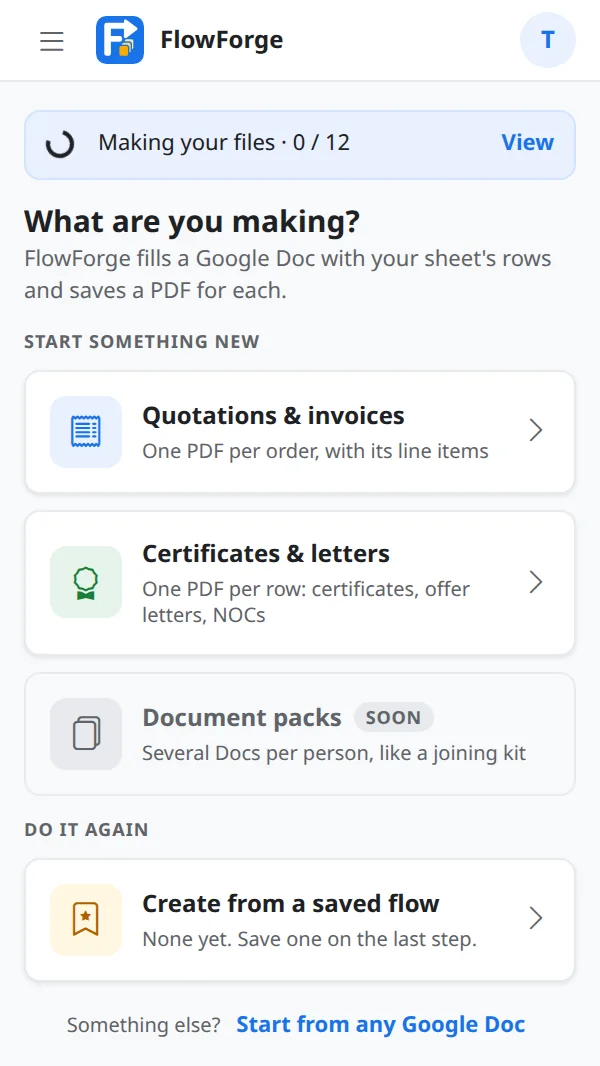
- A banner at the top shows a run that is still going. Tap View to return to it.
Step-by-step
Step 1: Open the sidebar
In Google Sheets choose Extensions › FlowForge › Open. The first time, Google asks you to allow it; each permission is explained in the Privacy section below.
Step 2: Use the menu
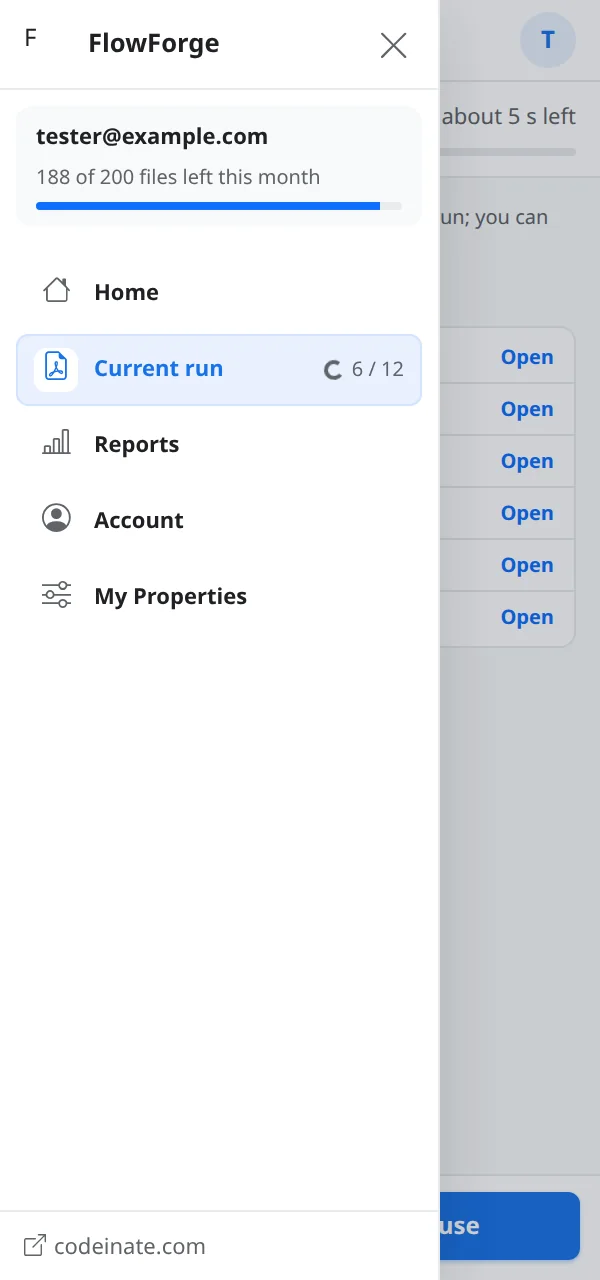
The menu (three lines, top left) has Home, Current run, Reports, Account and My Properties.
Step 3: Come back to a run in progress
If you close the sidebar while files are being made, the run keeps its place. Reopen FlowForge and use the banner on Home to continue.
Section 3
Step 1 · Your data and tabs
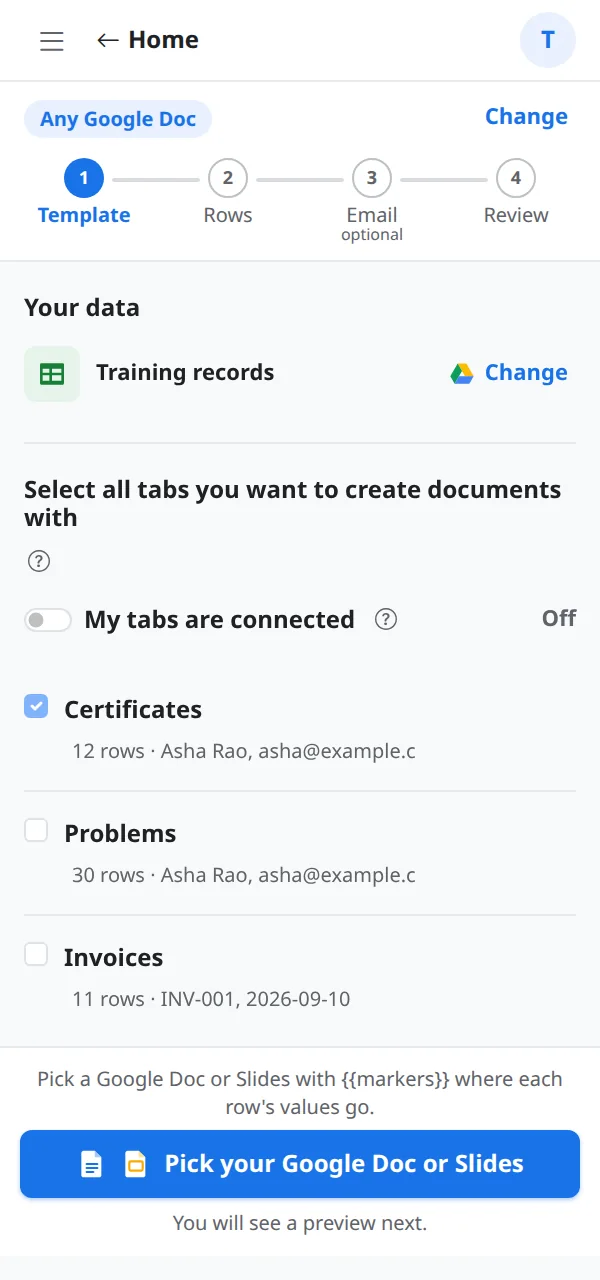
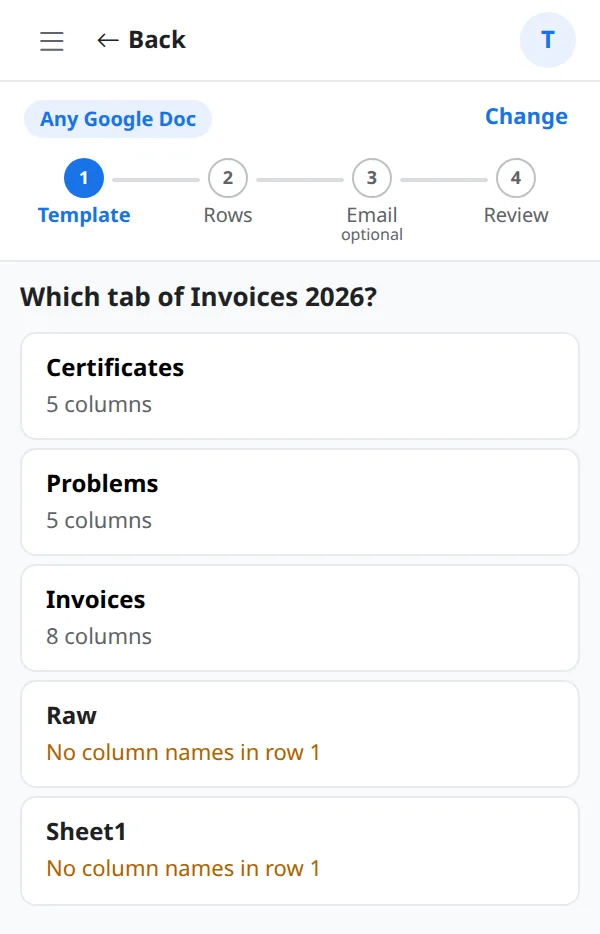
The first screen shows the sheet you are working in and every tab it has. Tick the tabs you want to create documents with.
What this covers
- Your data shows the spreadsheet name. Change opens Google Drive so you can pick a different spreadsheet.
- Each tab is a row with its name, how many rows it has and a few sample values.
- After you pick a template, FlowForge says which tab it will use, for example One document for each row of Orders, with a Change link.
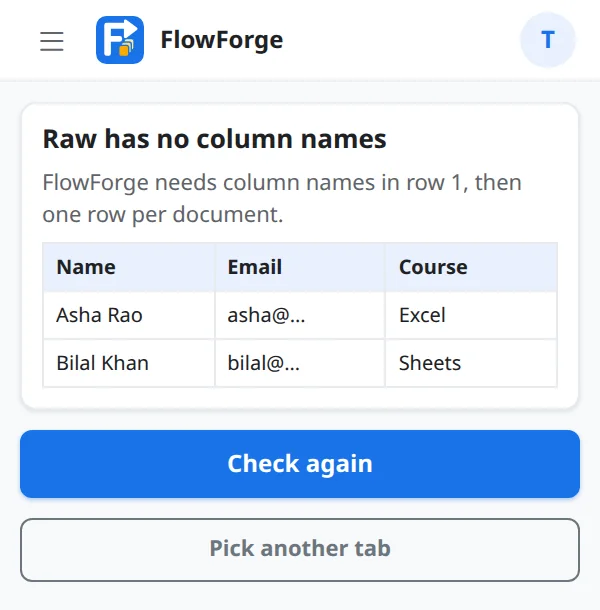
- Tabs with no column names in row 1 are shown with a short reason so you can fix them.
Step-by-step
Step 1: Tick your tabs
Tick every tab whose columns you want to use in the document. Example: tick Orders (the main tab) and Customers if the invoice needs the customer's address.
Step 2: Start with a different spreadsheet
Choose Change next to the sheet name, then pick a spreadsheet in Google Drive. FlowForge asks which tab holds your data.
Step 3: Only one tab?
Then you are done here. The Pick your Google Doc or Slides button is ready straight away.
Section 4
Tabs that belong together
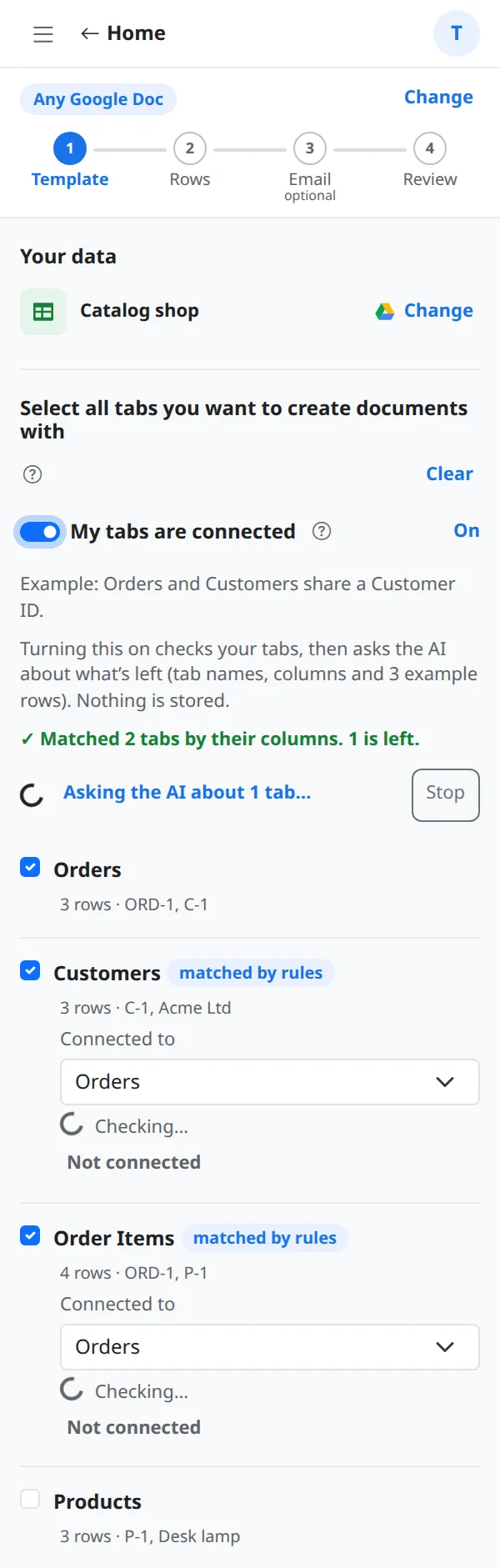
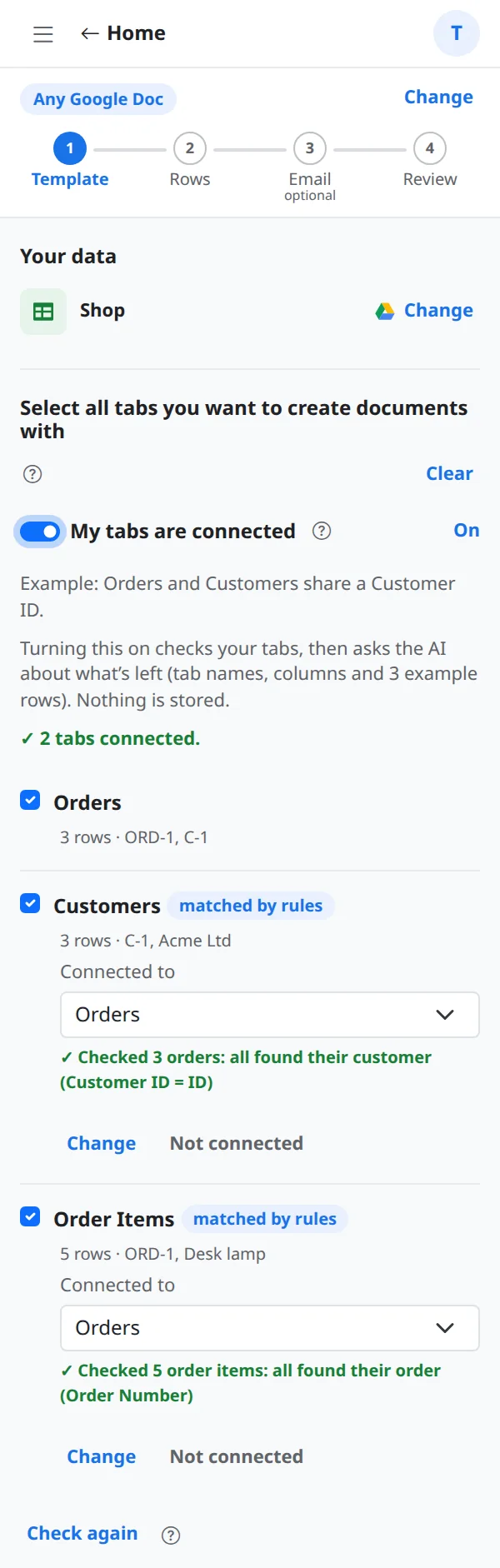
When your data lives in several tabs, such as Orders, Customers and Products, turn on My tabs are connected. FlowForge works out which column links one tab to another, so a document can use values from all of them.
What this covers
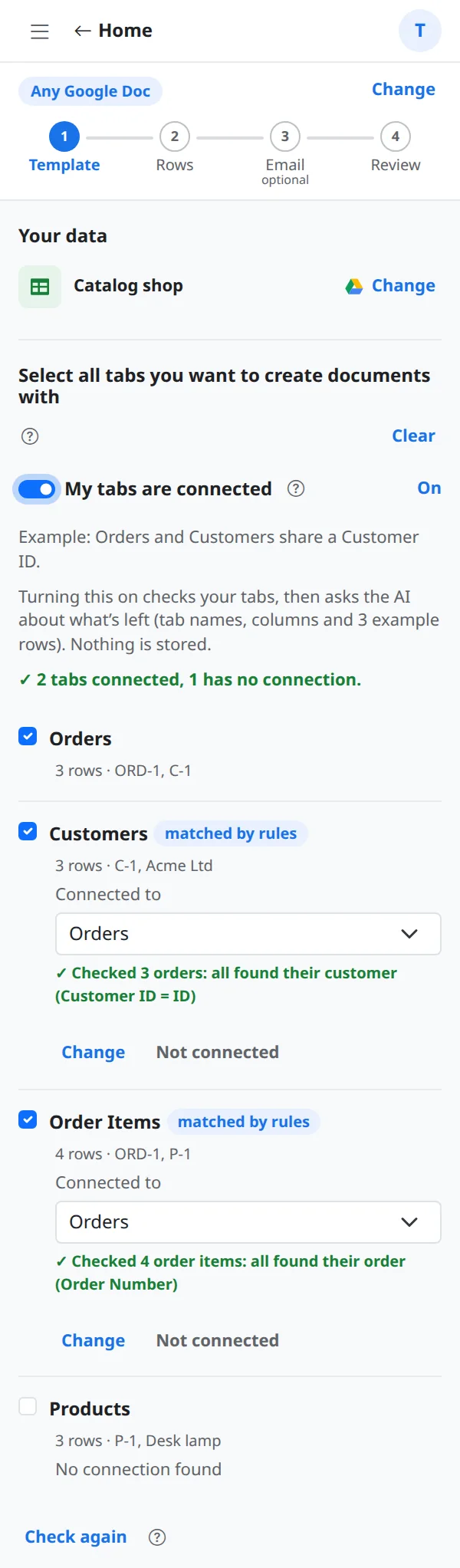
- Example: Orders has a Customer ID column and Customers has an ID column. FlowForge connects them and checks that every order finds its customer.
- First it matches by column names, which is free and instant (shown as matched by rules).
- For what is left it can ask Google's AI. It sends tab names, column names and 3 example rows. Nothing is stored. You can press Stop at any time.
- A green line under each tab says what was checked, for example Checked 3 orders: all found their customer.
Step-by-step
Step 1: Turn on My tabs are connected
Use the switch under the tab list. FlowForge starts checking at once and shows its progress.
Step 2: Read the result
Each connected tab shows Connected to and the column it matched. If you disagree, choose Change and pick another tab or column, or choose Not connected.
Step 3: Rules first
When names are clear (Customer ID and ID) FlowForge connects them without the AI, so most sheets never send anything to the AI.
Step 4: Check again
Fixed a column name in your sheet? Choose Check again and FlowForge reads the tabs again.
tip:Leave the switch off if your tabs are not related. Then each tab you tick is simply available by its own name.
Section 5
Pick your template and check the matches
Choose a Google Doc or Slides file. FlowForge opens it in a preview window, finds every {{marker}} and matches each one to a column.
What this covers
- The sticky blue button Pick your Google Doc or Slides opens the Google file picker. You only see files you choose.
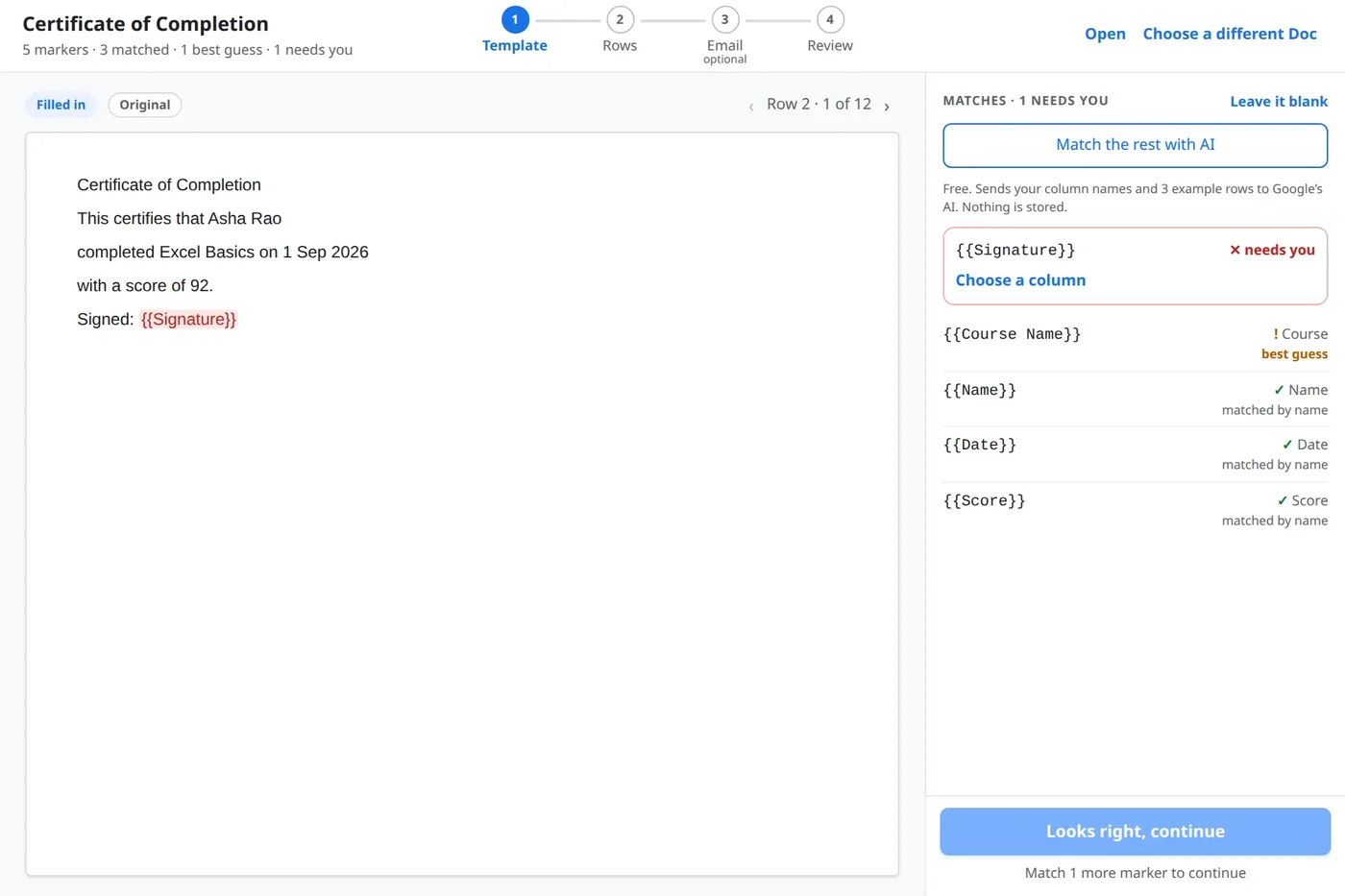
- The preview window shows your template filled in with a real row. Use the arrows to look at other rows.
- Filled in shows the result; Original shows your template as you wrote it.
- On the right, every marker has a status: matched by name, best guess (check it), or needs you.
Step-by-step
Step 1: Pick the file
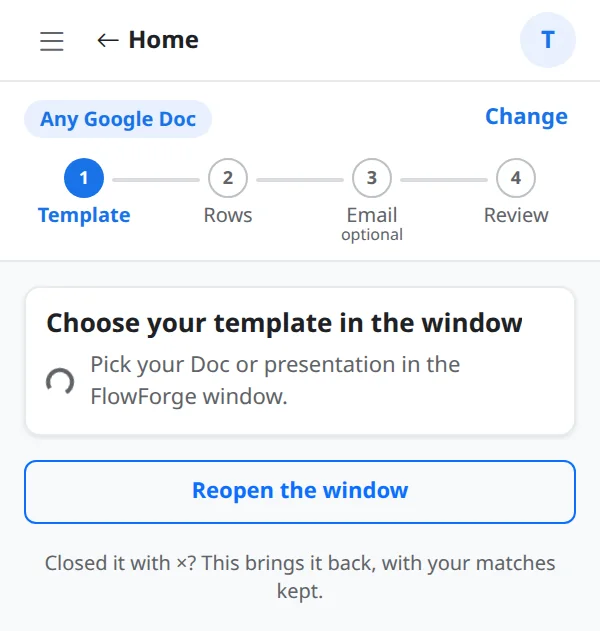
Choose Pick your Google Doc or Slides. A window opens next to the sidebar.
Step 2: Check the matches
Green ticks are fine. A best guess is probably right, so look at it once. A red needs you has no column yet: choose Choose a column, or Leave it blank to leave that spot empty.
Step 3: Let the AI match the rest
Match the rest with AI is free. It sends your column names and 3 example rows to Google's AI and nothing is stored. You still accept or change what it suggests.
Step 4: Continue
Looks right, continue turns blue when every marker is matched or left blank. It then closes the window and returns to the sidebar.
Step 5: If the template cannot be used
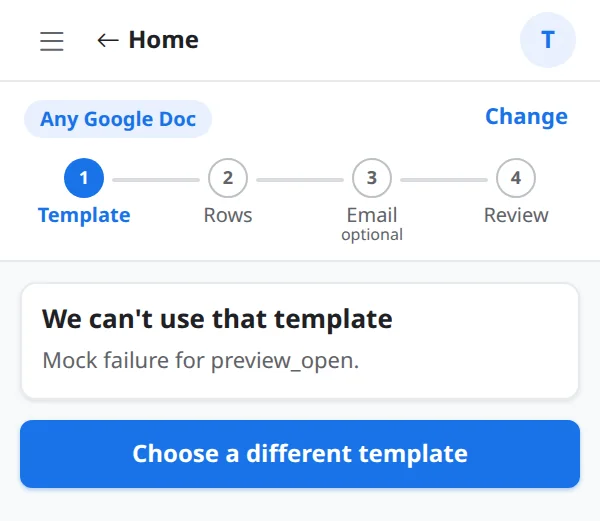
FlowForge says why, for example when the file was deleted or you no longer have access, and lets you choose a different template.
Before you move on
- ✓ Every marker is matched or deliberately left blank
- ✓ The preview looks right for two or three different rows
Section 6
Step 2 · Rows and output
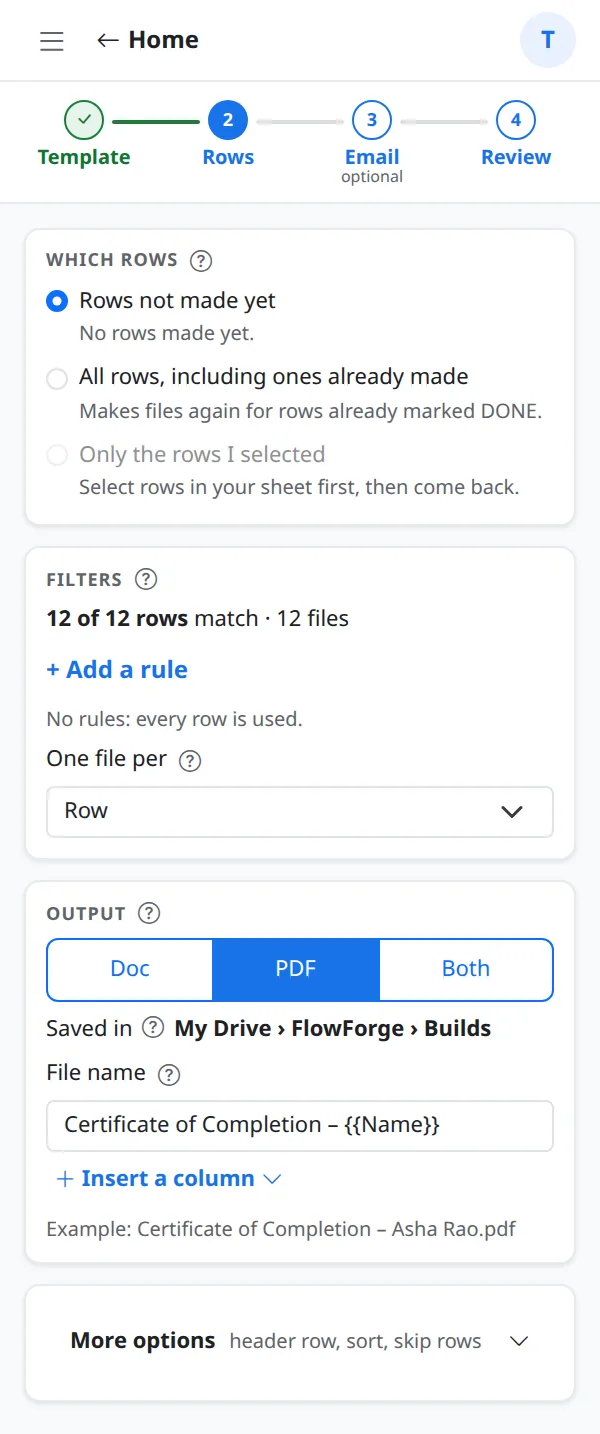
Choose which rows become documents, what to make from each, where to save it and how to name it.
What this covers
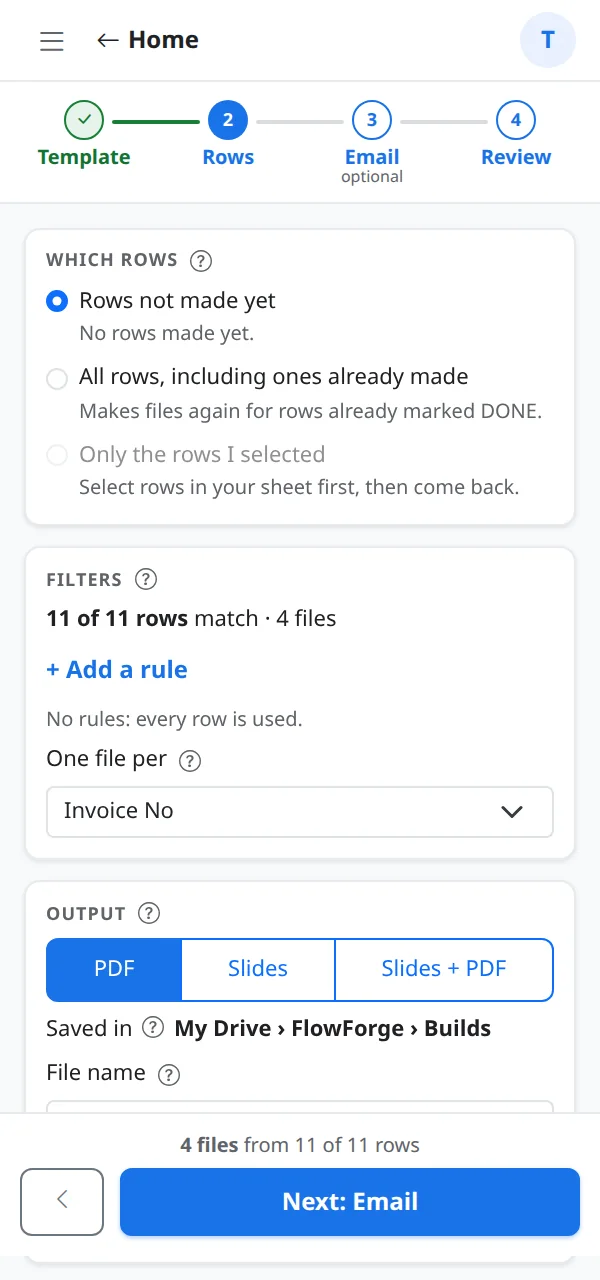
- Which rows: Rows not made yet (the default, so nothing is made twice), All rows including ones already made, or Only the rows I selected in the sheet.
- Filters: add a rule such as Status is Paid to use only some rows. FlowForge shows how many rows match and how many files that makes.
- One file per: normally Row. For invoices you can group, so several rows with the same invoice number become one invoice.
- Output: Doc, PDF or Both. For a Slides template: Slides, PDF or both.
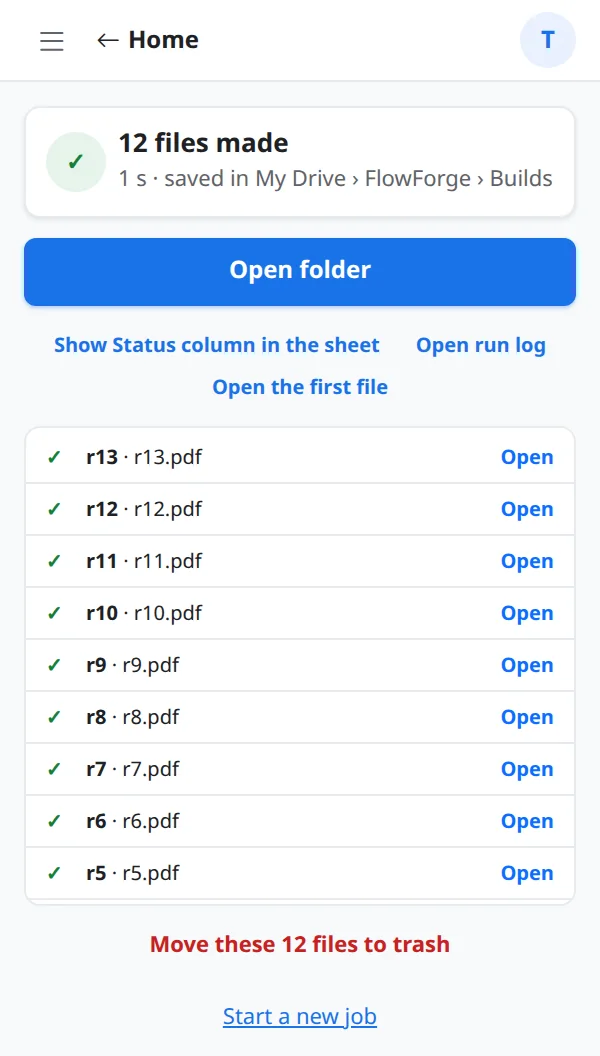
- Saved in: a new folder for every run, inside My Drive › FlowForge › Builds, so runs never mix.
- File name: write it with markers, for example Certificate of Completion – {{Name}}.
Step-by-step
Step 1: Choose the rows
Leave Rows not made yet selected for your first run. Choose Only the rows I selected after highlighting rows in your sheet.
Step 2: Insert a column into the file name or message
Choose Insert a column and tap a column name. Each column shows its tab, so values from connected tabs are easy to find.
tip:Tap the column, then pick how to show it: as it is, as a date in your style, with two decimals, in capitals and so on. The choices fit the kind of value, so a date offers date styles.Step 3: See the count
The bar at the bottom says, for example, 12 files from 12 of 12 rows, before you go on. Next: Email continues.
Before you move on
- ✓ The count at the bottom is what you expect
- ✓ The file name shows a different name for each row in the example line
Section 7
Step 3 · Email each file (optional)
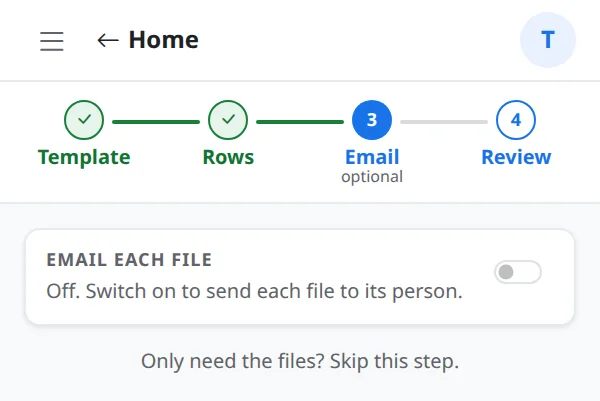
Turn this on to email every file to the person on its row. Leave it off if you only need the files.
What this covers
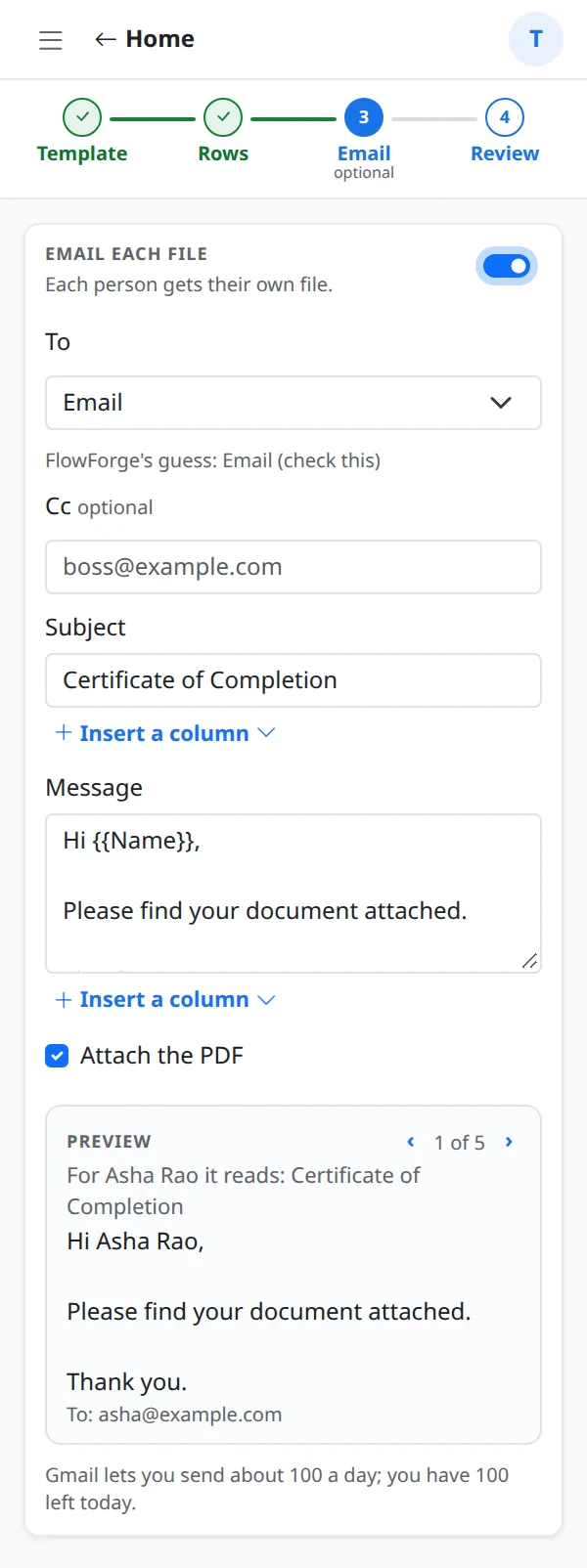
- To: pick the column that holds the email address. FlowForge makes a guess and says so; check it.
- Cc is optional. Subject and Message can use markers, so each email greets the right person.
- Attach the PDF sends the finished PDF with the email.
- The preview shows exactly what one person will receive. Use the arrows to see other people's emails.
- Emails go from your own Gmail address, so Gmail's own daily sending limit applies. FlowForge tells you if you are close to it.
Step-by-step
Step 1: Leave it off to skip
With the switch off, Next: Review takes you straight on.
Step 2: Write the email once
Turn the switch on, choose the To column, then write the subject and message. Insert a column puts the person's name or order number in.
Step 3: Send yourself a test first
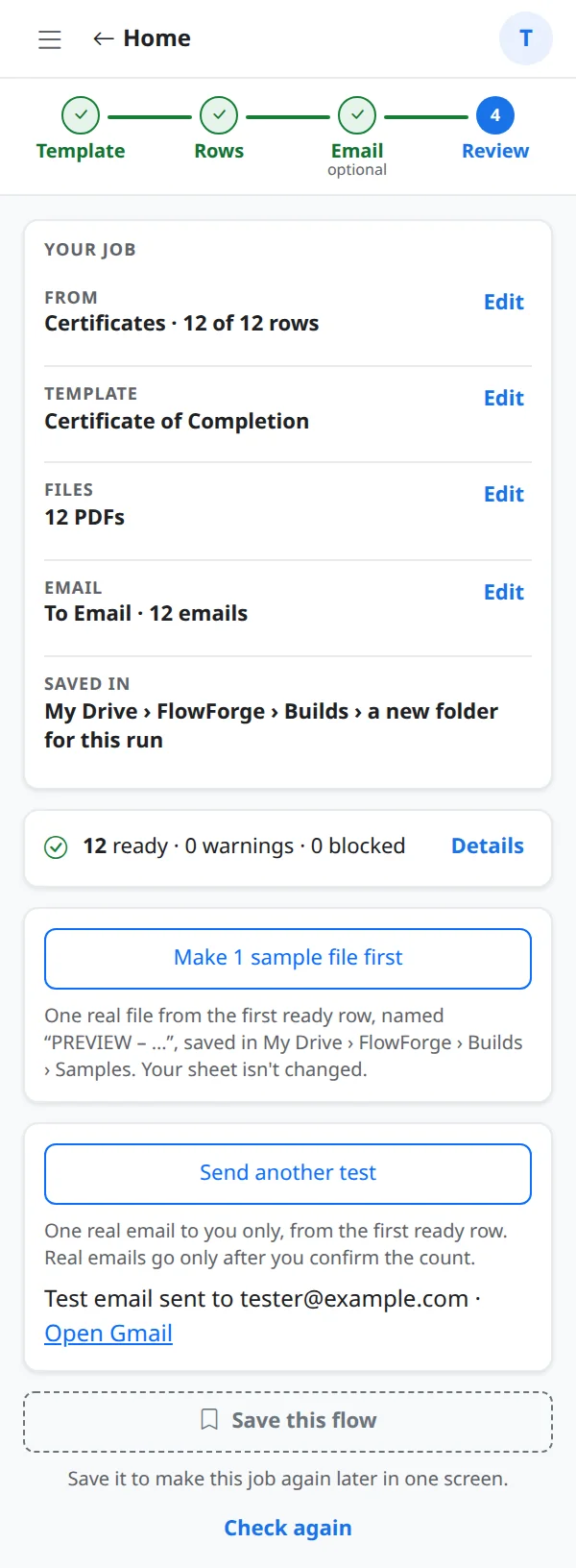
On the Review step, use the test email button. It uses a real row but goes only to you.
Before you move on
- ✓ The preview reads the way you want for two different people
- ✓ You sent yourself a test and it arrived
Section 8
Step 4 · Review and create
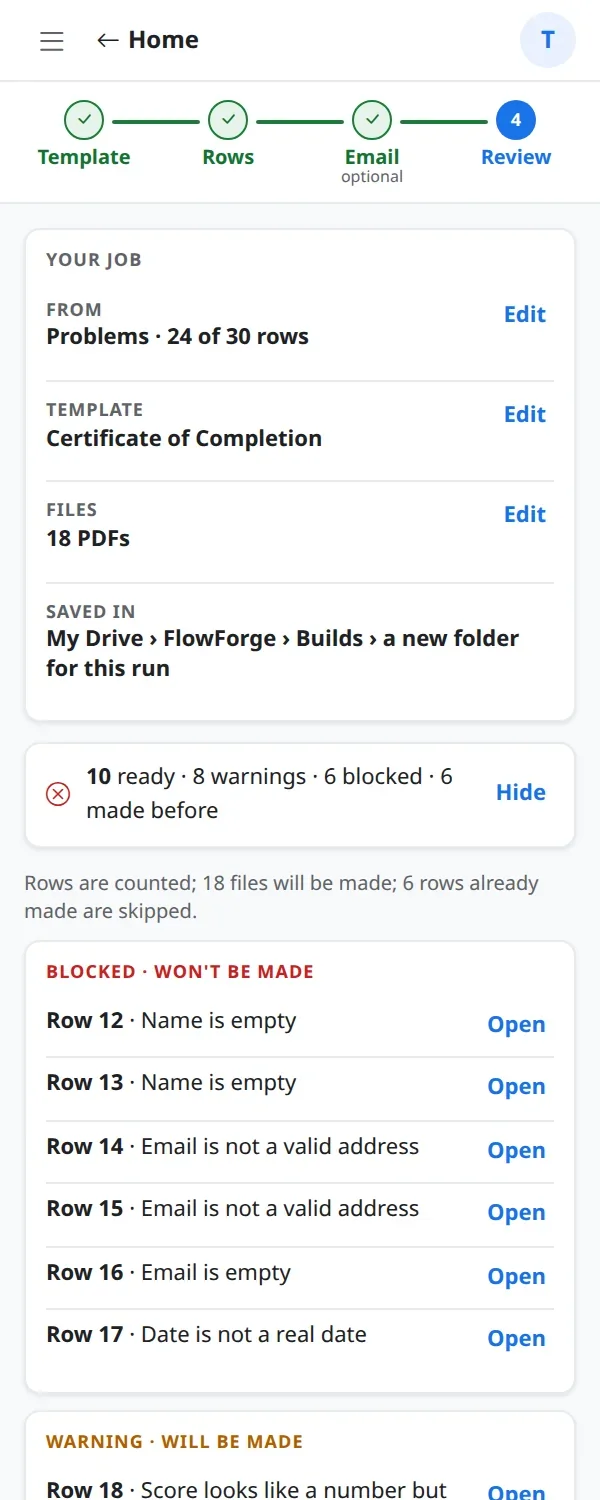
FlowForge checks every row before it makes a single file. You see what will be made, what is blocked and why.
What this covers
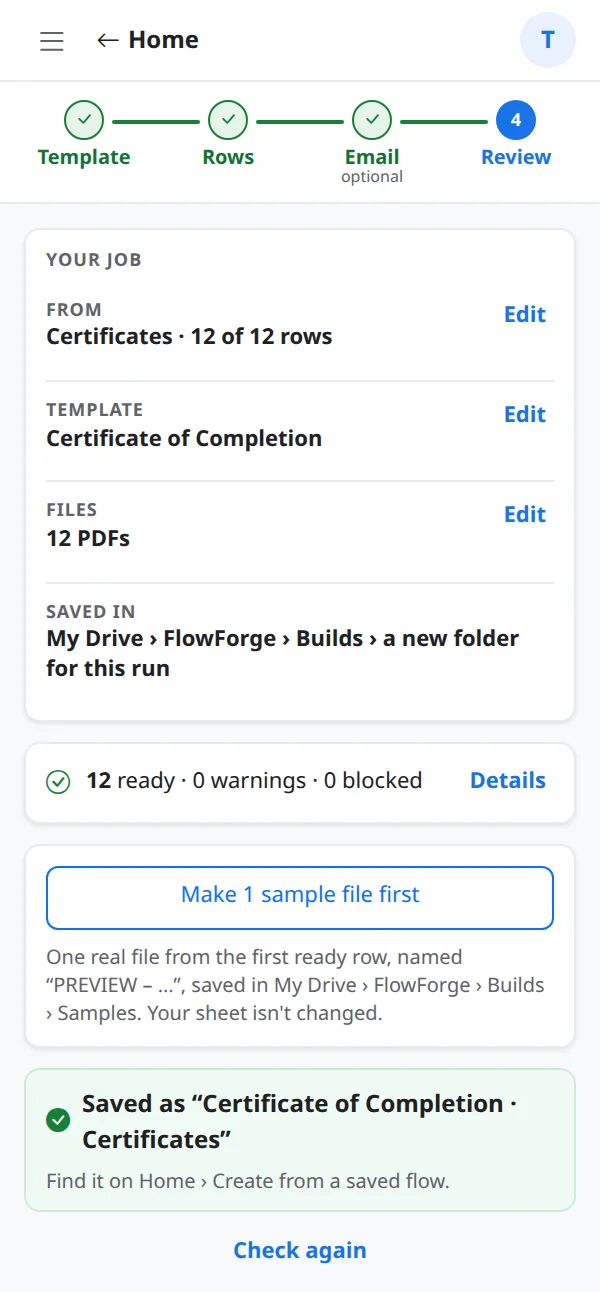
- Your job: the sheet, the template, how many files and where they are saved, each with an Edit link back to the right step.
- The count line, for example 12 ready · 0 warnings · 0 blocked. Details lists every row.
- Blocked rows are not made. Each says why, for example Row 8: Price is empty. Open takes you to that row in your sheet.
- Make 1 sample file first saves one real file called PREVIEW – … in a Samples folder. Your sheet is not changed.
- Save this flow keeps the whole job so you can repeat it later in one screen.
Step-by-step
Step 1: Look at the check
Everything ready is the goal. Warnings are things to know about; blocked rows will be skipped.
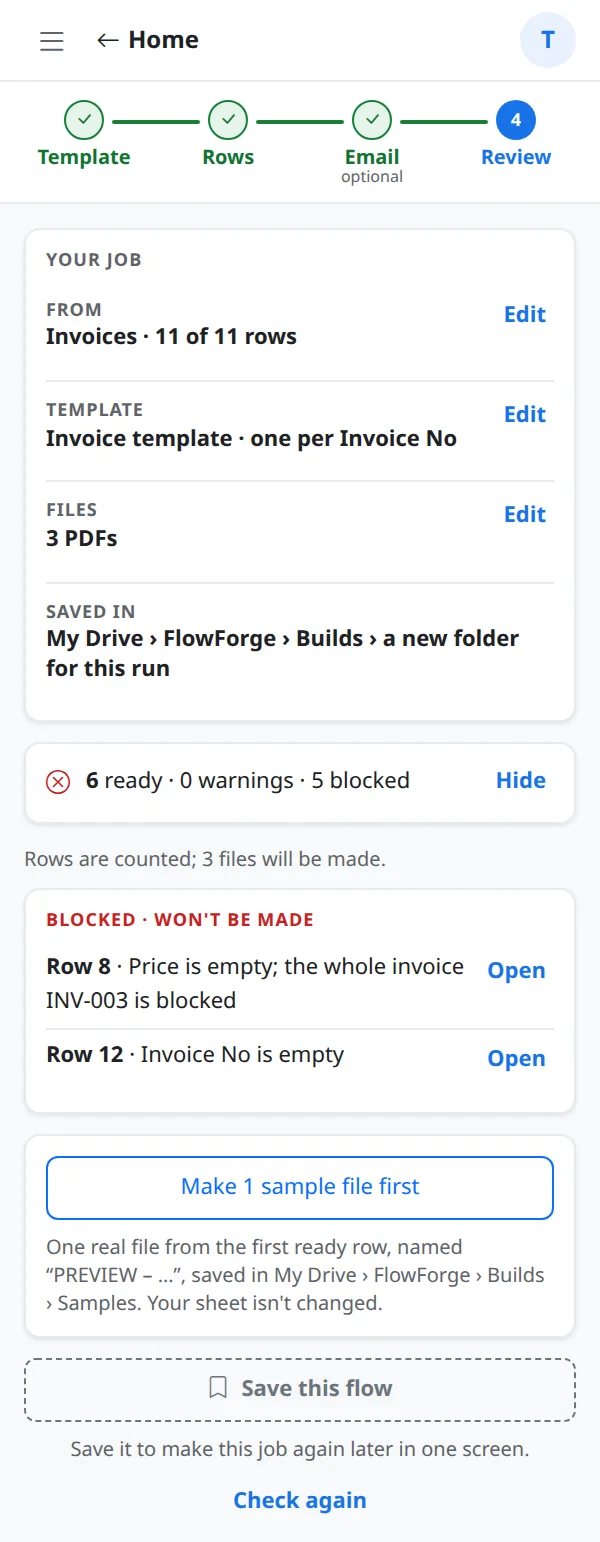
Step 2: Fix what is blocked
Open the row, fix the value in your sheet, then choose Check again. The count updates.
Step 3: Make one sample
Choose Make 1 sample file first, then open it. If the sample looks right, the rest will too.
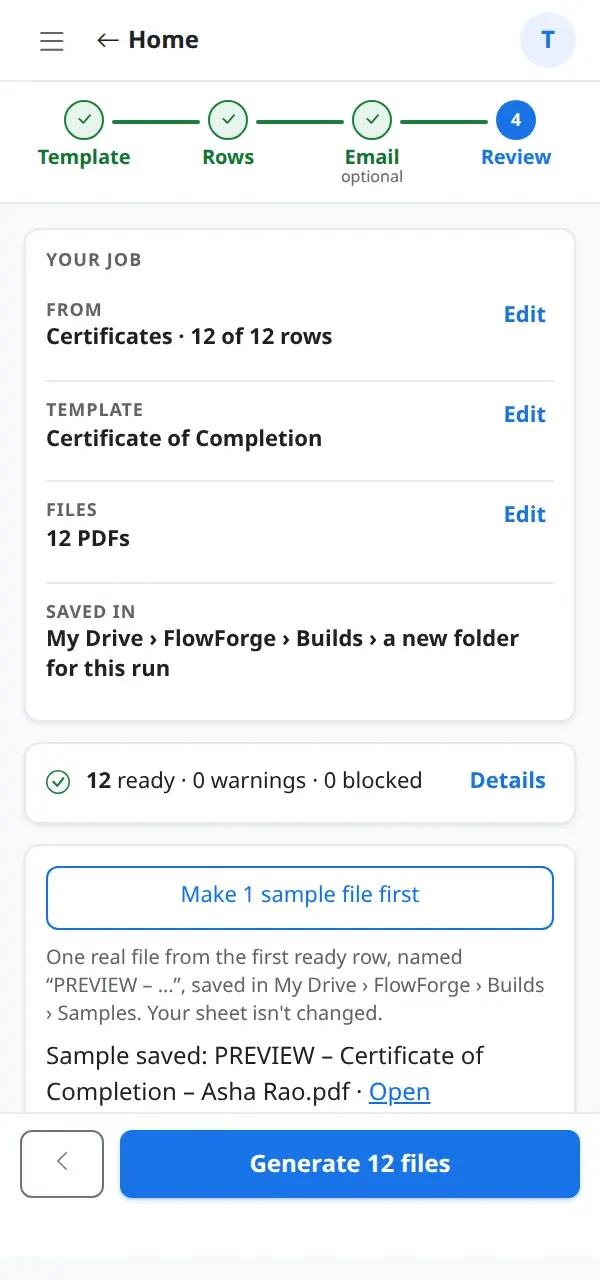
Step 4: Generate
Choose Generate. If emails are on, FlowForge asks you to confirm before it sends anything.
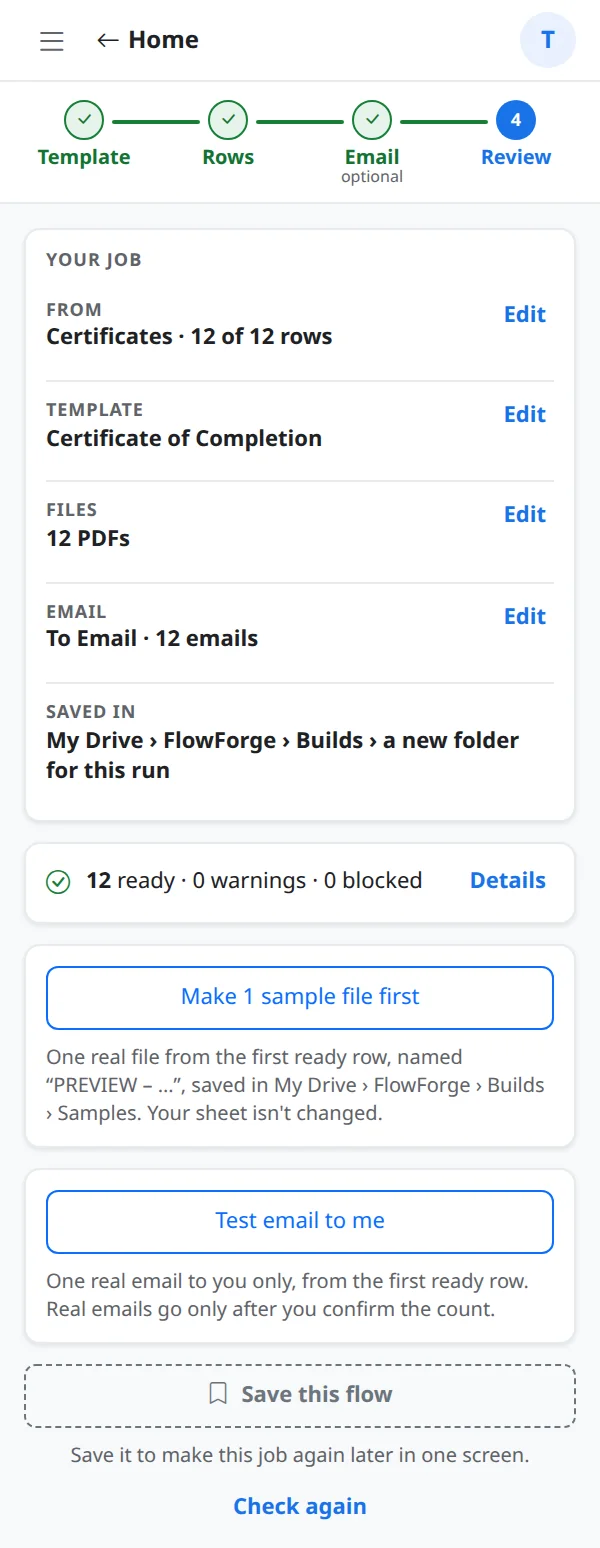
Section 9
While your files are made
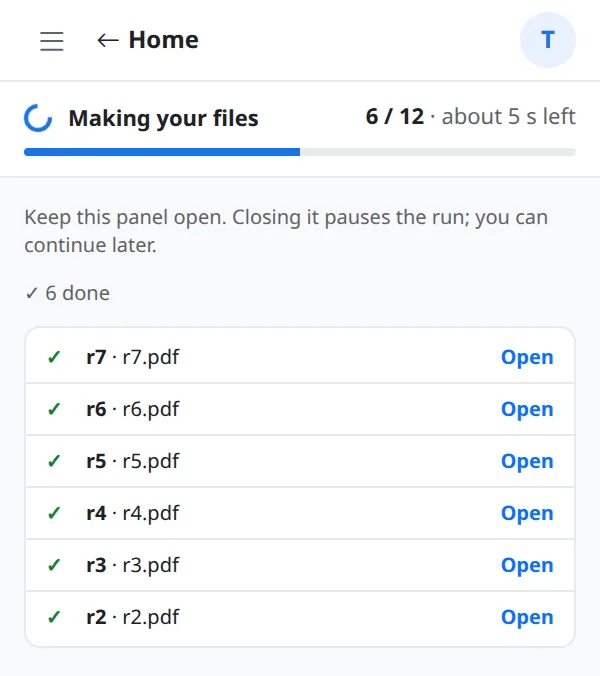
A run makes files in small batches. You can watch, pause or leave and come back.
What this covers
- The progress bar shows how many files are made and about how long is left. Each finished file has an Open link.
- Keep the panel open for the fastest run. Closing it pauses the run; reopen FlowForge and continue.
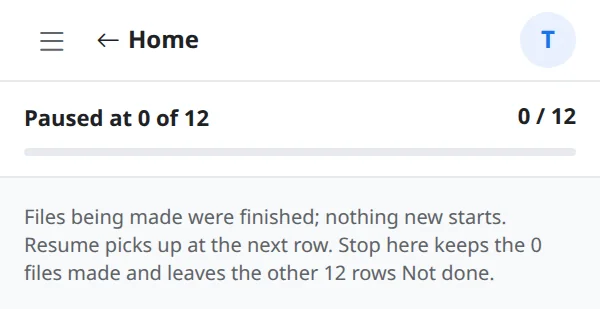
- Pause stops after the current file. Resume carries on where it stopped; Stop here ends the run and keeps what was made.
- Every row gets a status in your sheet (DONE or the reason it was not made), so you always know which rows are finished.
Step-by-step
Step 1: Watch the progress
Files appear in the list as they finish.
Step 2: Pause if you need to
Pause is safe. Nothing is made twice when you resume.
Step 3: Done
Open folder takes you to the new folder. You can also show the status column in your sheet, open the run log, or open the first file.
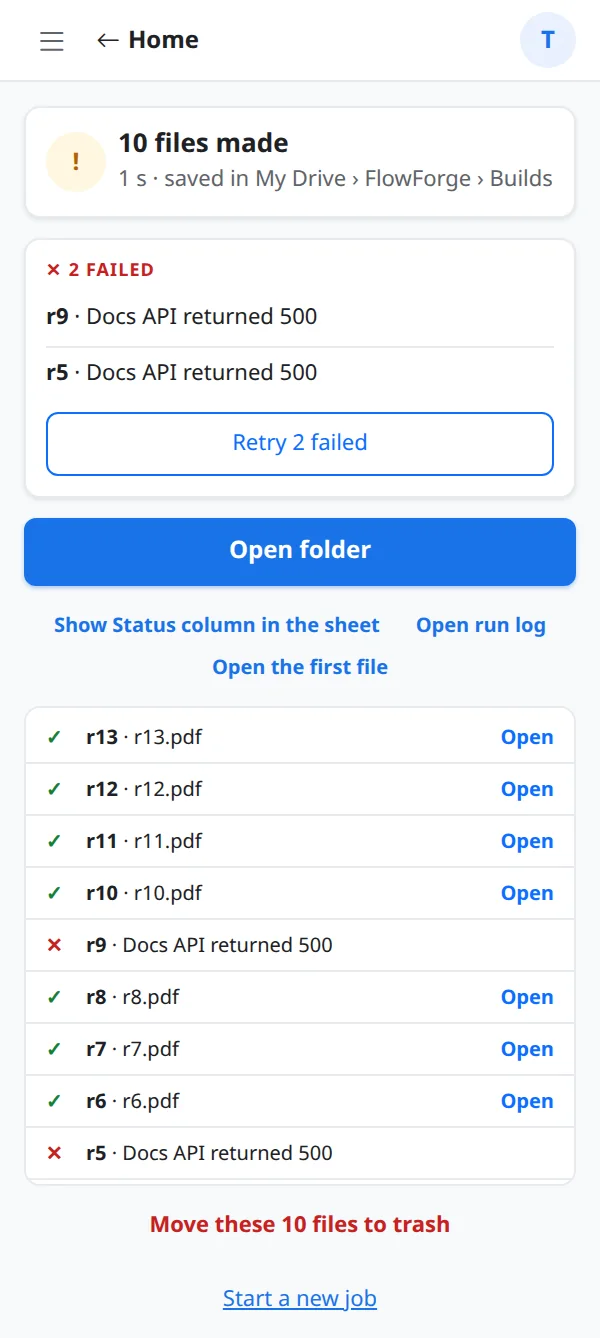
Step 4: If some files failed
Retry 2 failed makes only the failed ones. Files that worked are never made again.
Section 10
Saved flows: do it again in one screen
Save a job once, then repeat it every week or month without choosing everything again.
What this covers
- Choose Save this flow on the Review step and give it a name such as Monthly invoices.
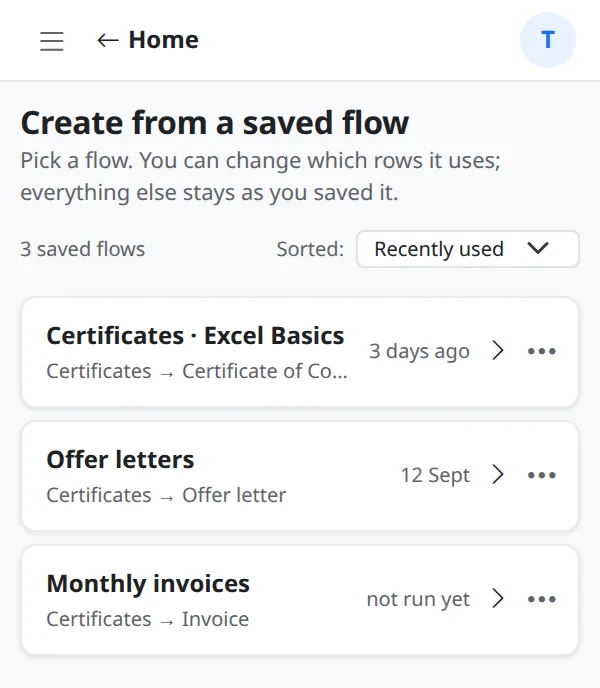
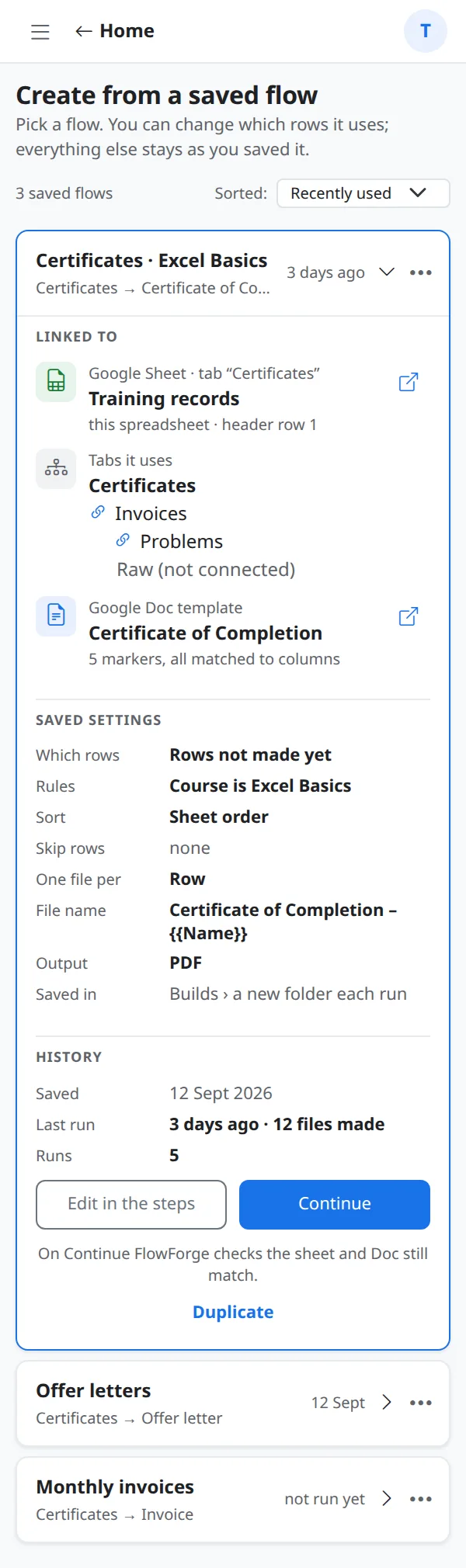
- Create from a saved flow lists your flows, most recently used first. Open one to see its template, tabs and settings.
- Continue goes straight to a fresh check and run. Edit in the steps opens the normal steps with everything filled in.
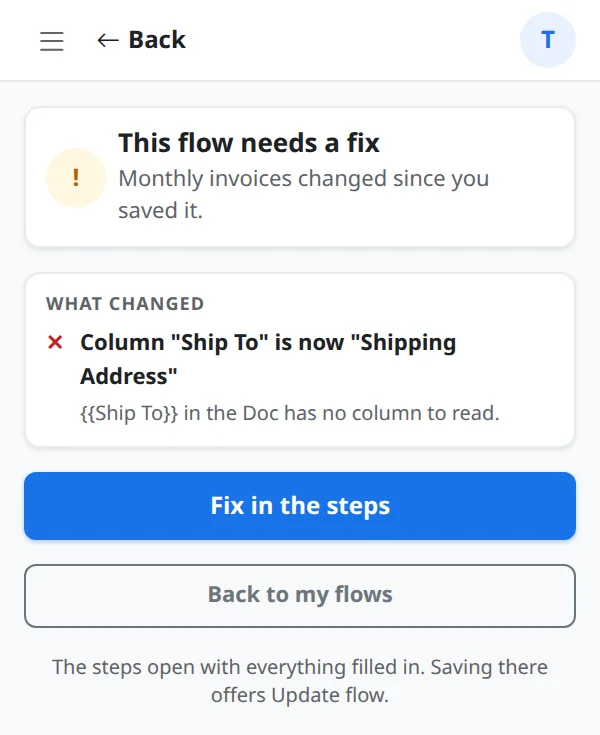
- If your sheet changed since you saved, for example a column was renamed, FlowForge says exactly what changed and offers Fix in the steps.
- Use the ... menu on a flow to rename or delete it.
Step-by-step
Step 1: Save it
After the check, choose Save this flow and give it a name.
Step 2: Find it later
Open Create from a saved flow on Home.
Step 3: Open and continue
A flow shows what it will do. Continue runs the check on today's rows.
Step 4: When something changed
A renamed column or deleted tab is explained in plain words, with a button to fix it.
Section 11
Working from a Doc or Slides
You can also start inside the template. Open your Google Doc or Slides file, choose Extensions › FlowForge, pick the sheet, and let FlowForge place the markers for you.
What this covers
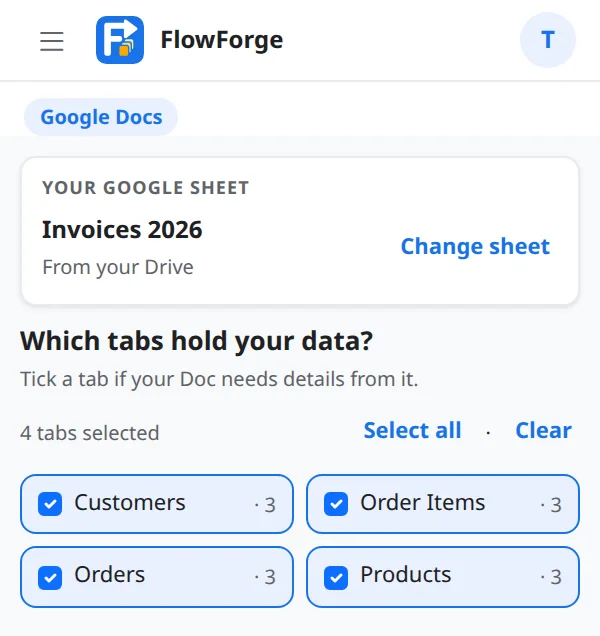
- Page 1: choose the sheet, then tick the tabs that hold your data.
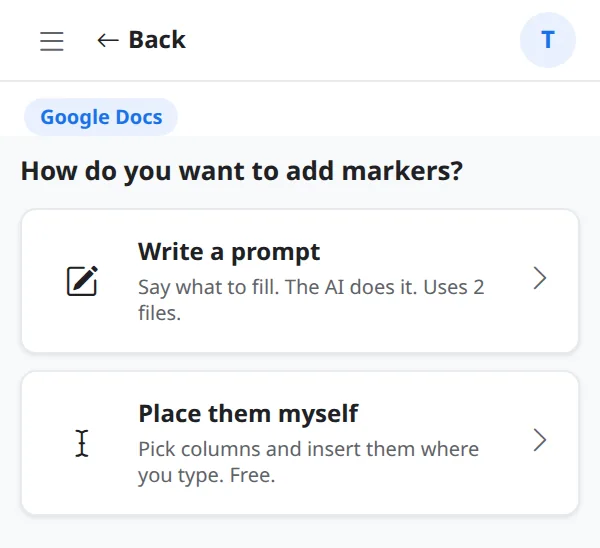
- Page 2: choose how to add markers. Write a prompt lets the AI do it; Place them myself lets you click.
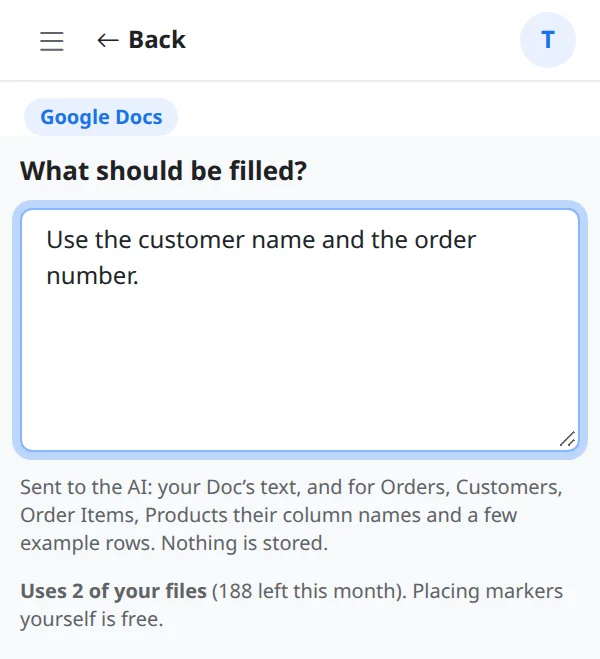
- With a prompt, describe what should be filled in plain words. FlowForge sends your Doc's text, the tab names, column names and a few example rows to Google's AI, then checks every answer against your Doc and your sheet before changing anything. It saves a backup copy first, and you can undo.
- Slides work the same way. The words change to presentation and slide.
Step-by-step
Step 1: Choose the sheet and tabs
Choose a sheet, then tick the tabs you want. Select all and Clear help when there are many.
Step 2: Pick how to add markers
Write a prompt is the quickest. Place them myself is for full control.
Step 3: Write the prompt
Example: Use the customer name and the order number. Press Fill my Doc.
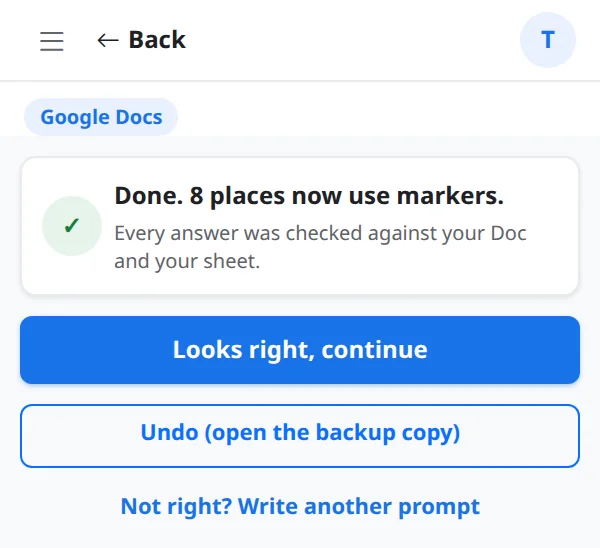
Step 4: Check the result
FlowForge tells you how many places now use markers. Looks right, continue goes on; Undo opens the backup copy; Not right lets you write another prompt.
Step 5: Place markers yourself
Search the columns, choose a tab, and click a column to put its marker in your Doc. Keep Insert in my Doc when I click on to have it placed at your cursor.
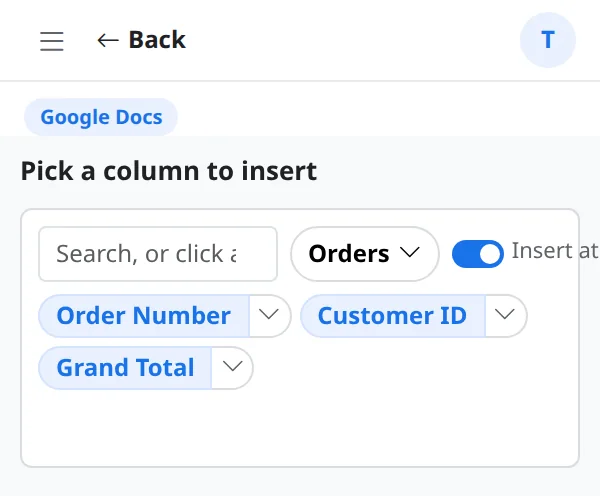
Step 6: In Google Slides
The same pages appear in Slides with presentation wording. Select the text on a slide first so FlowForge knows where the marker goes.
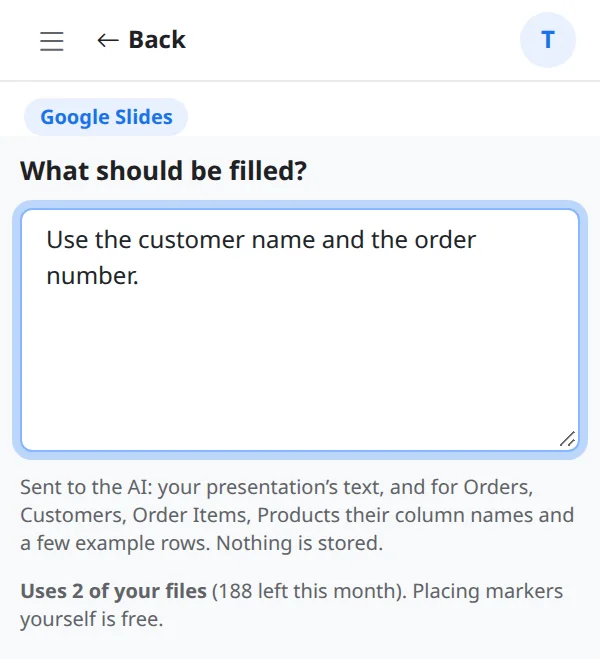
Step 7: Slides as the output
From a sheet you can also make Slides, a PDF of the slides, or both.
Section 12
Reports: what was made
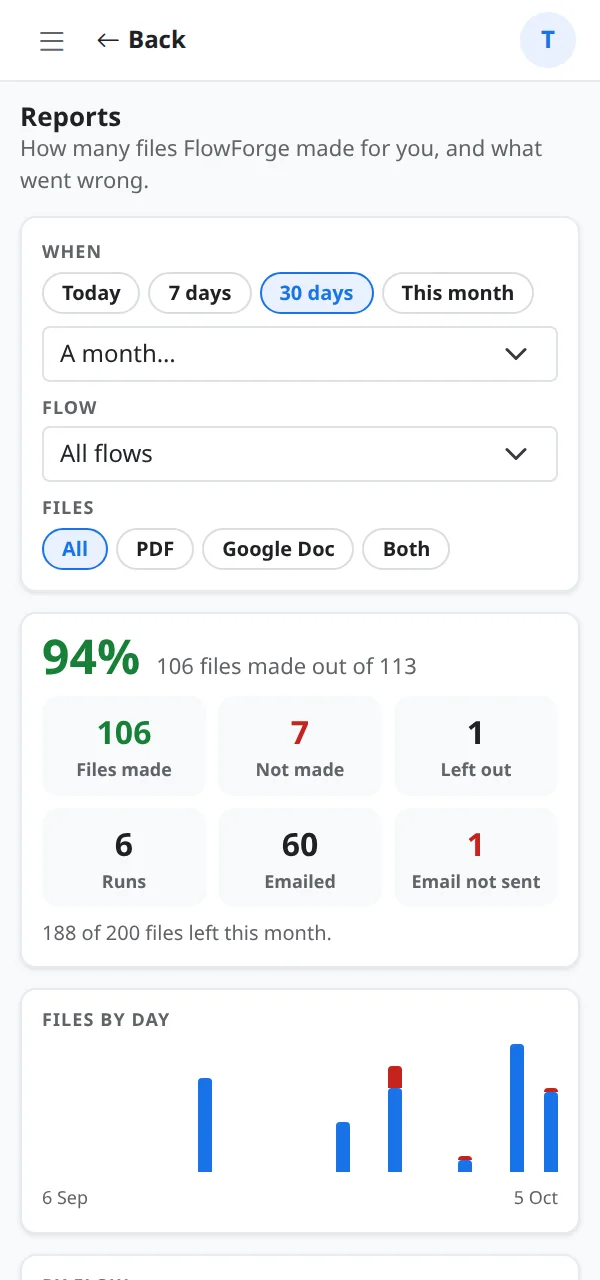
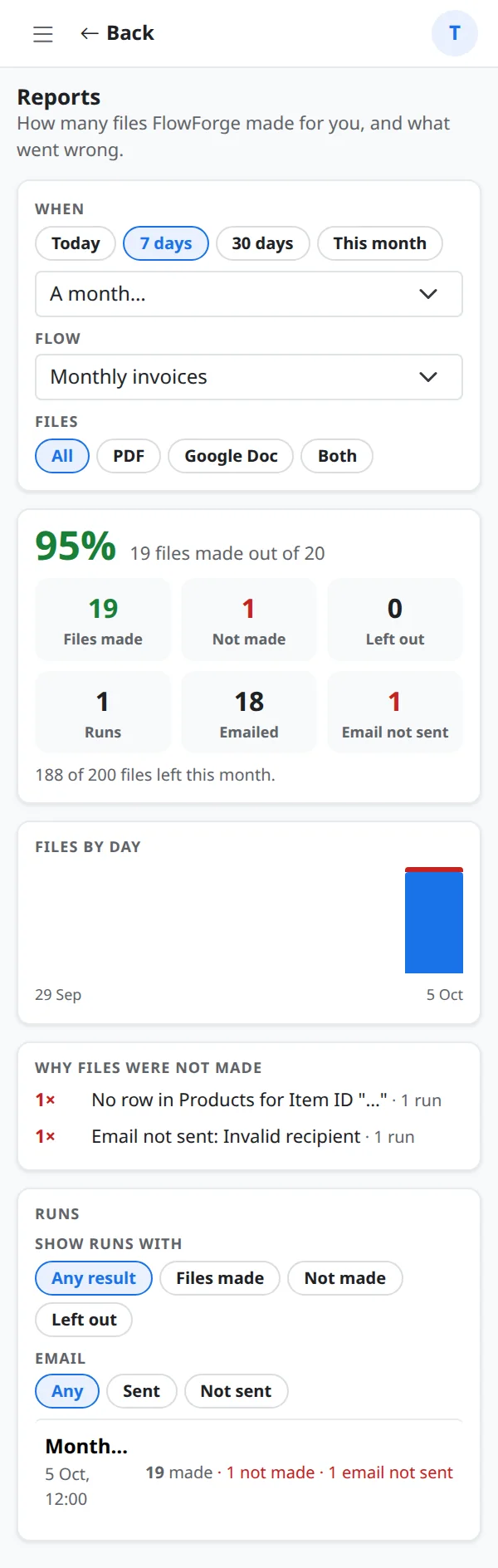
Open the menu and choose Reports to see how many files FlowForge made for you, how many did not work and why.
What this covers
- Choose a period (Today, 7 days, 30 days, This month, or a month), one flow or all flows, and Doc, PDF or both.
- The summary shows files made, not made, left out and email not sent, with a bar for each day.
- Why files were not made groups the reasons, for example Price is empty, so you fix the cause once.
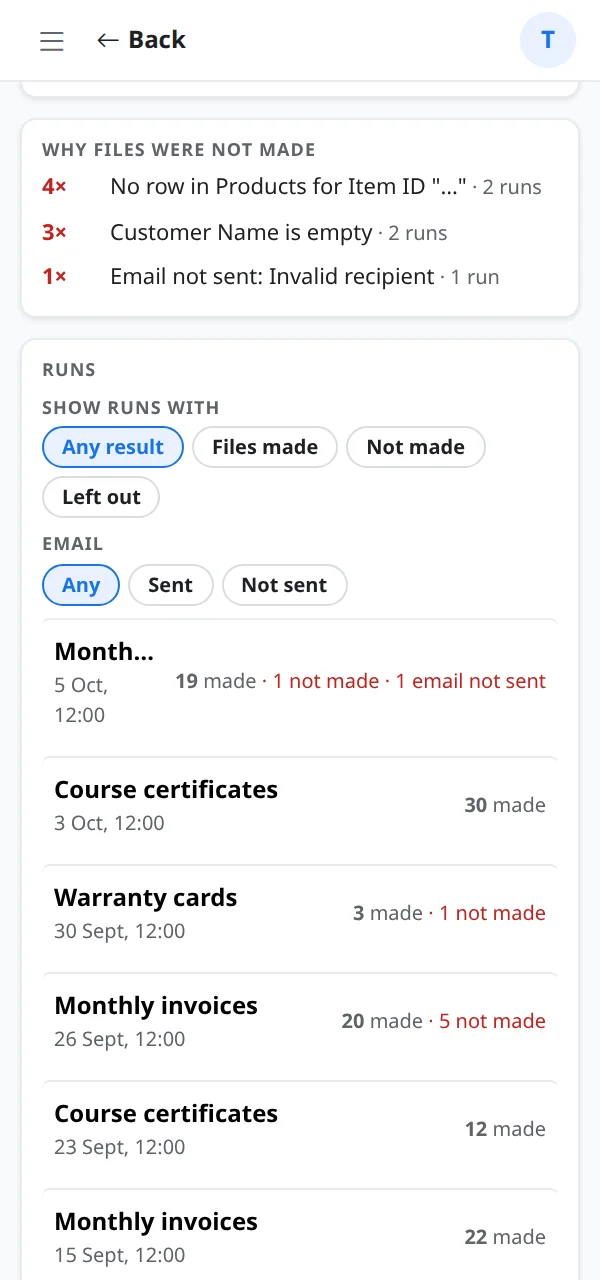
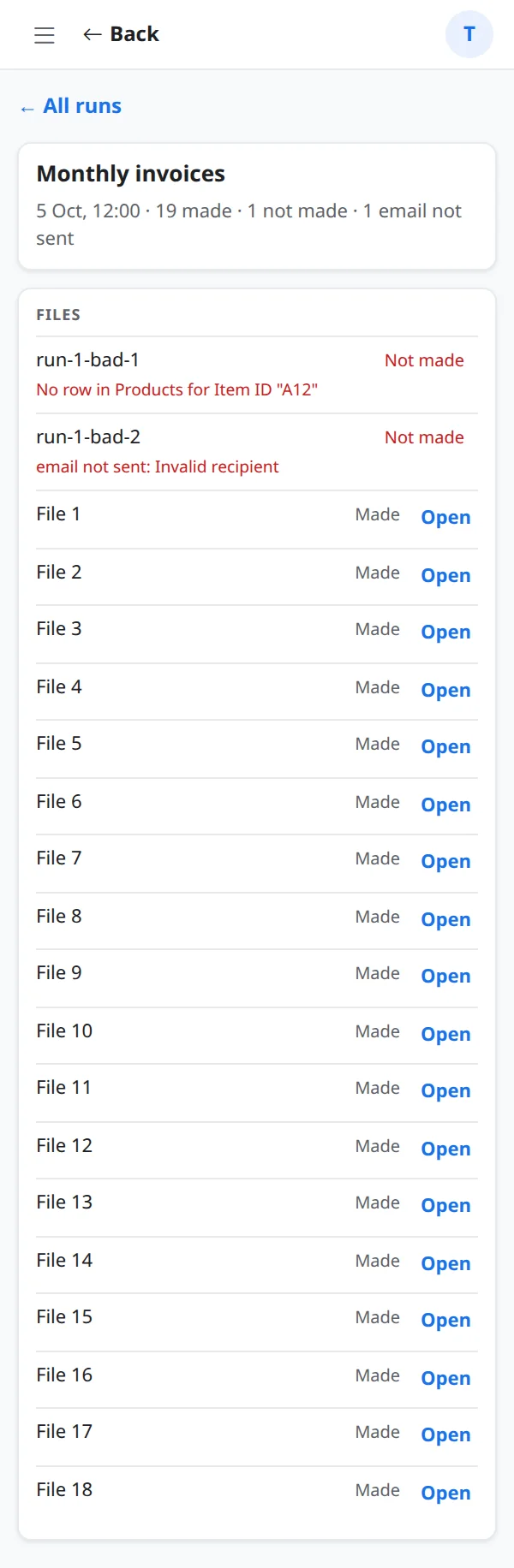
- Runs lists each run. Open one to see its files, with Open links.
Step-by-step
Step 1: See the summary
A percentage of files made and the counts for the period you chose.
Step 2: Filter
Narrow by period, flow and file type.
Step 3: Open a run
Runs lists every run with its date and result. Tap one for the detail.
Step 4: Read one run
See which files were made and which were not, and why.
Section 13
Account and My Properties
Your account page has your email, help links and your reusable values.
What this covers
- Help links to How FlowForge works, what it stores and why (Privacy) and Send feedback.
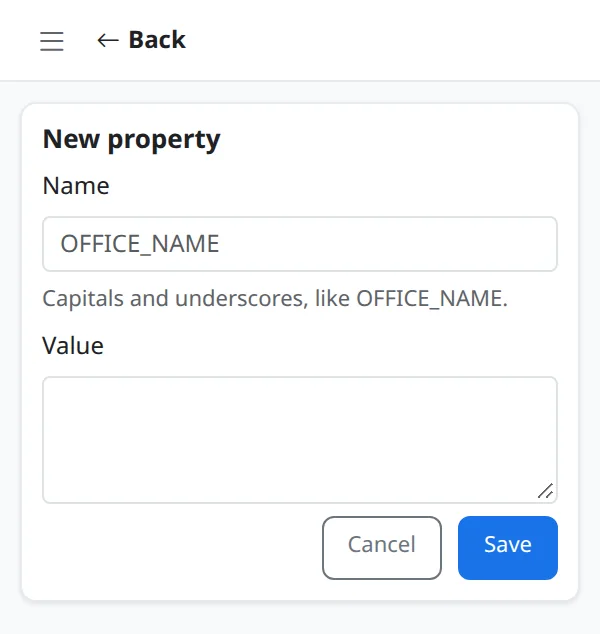
- My Properties are values that are the same on every document, like your company name, address or a signature line. Use them as markers such as {{OFFICE_NAME}}.
- Names use capitals and underscores, for example OFFICE_NAME.
Step-by-step
Step 1: Open your account
Open the menu, then Account. Choose My Properties to see your reusable values.
Step 2: Add a property
Choose + Add a property, give it a name and a value.
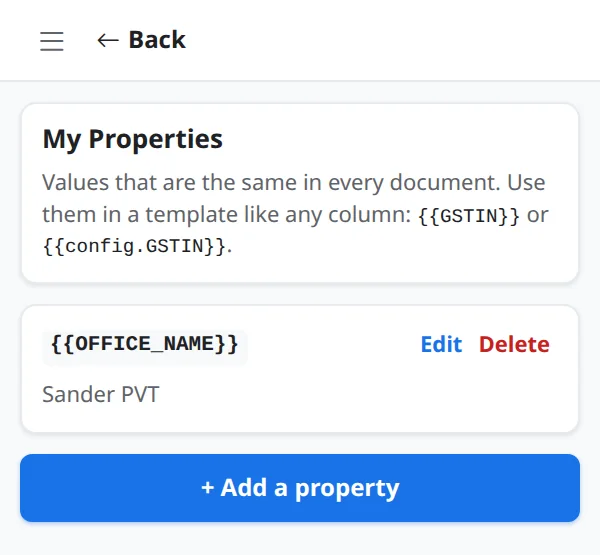
Step 3: Name and value
Type the name in capitals with underscores, then the value to put in your documents.
Section 14
If something goes wrong
FlowForge explains problems in plain words and never changes anything when it cannot finish a step.
What this covers
- Nothing is lost: files made before a problem stay in your folder and are never made twice.
- Most problems have one button that fixes them, such as Try again, Choose again or Reconnect.
- If you see a reference number, include it when you write to us.
Step-by-step
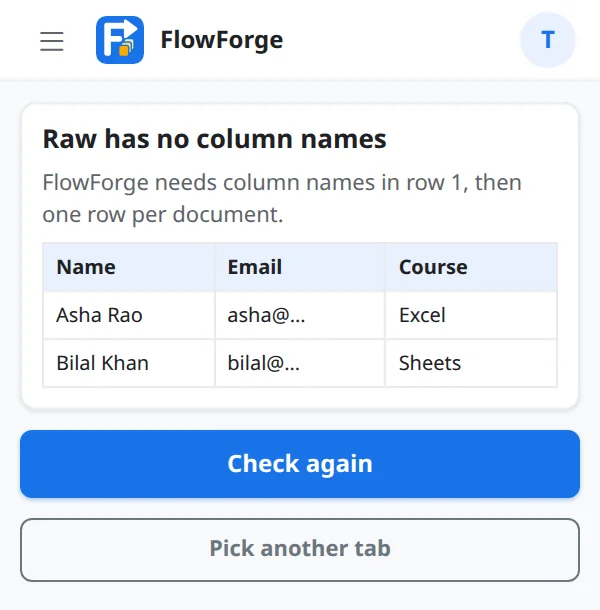
Step 1: A tab has no column names
FlowForge reads column names from row 1. Add them, then choose Check again, or pick another tab.
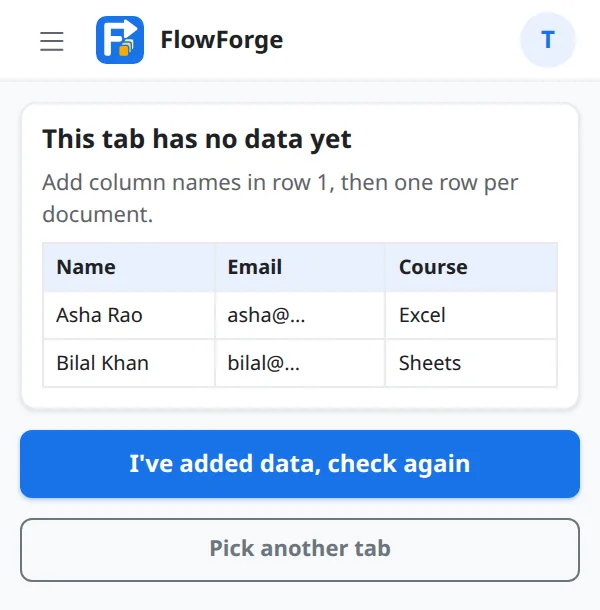
Step 2: A tab is empty
Add at least one row of data under the column names, then choose I've added data, check again.
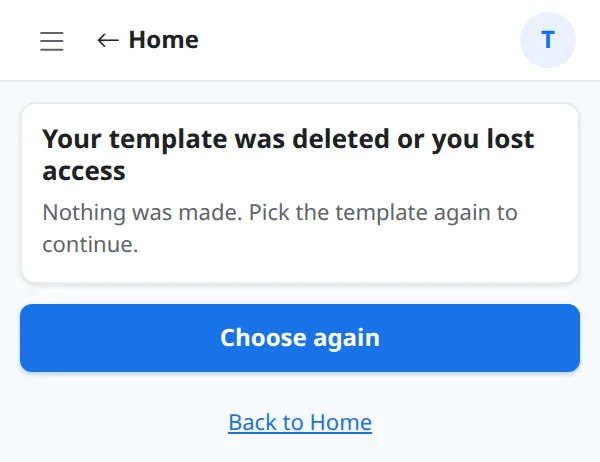
Step 3: The template was deleted
Choose Choose again and pick another file. Your settings are kept.
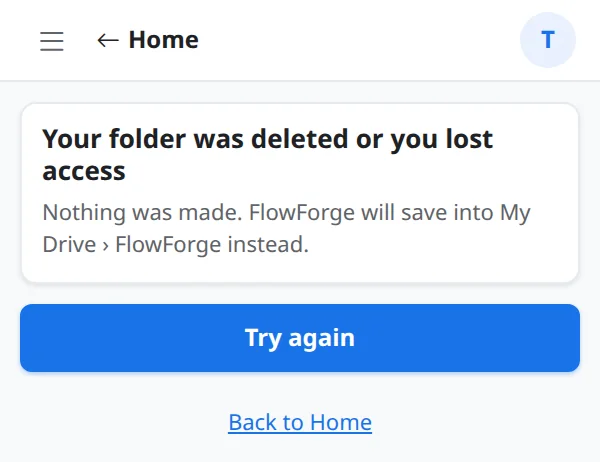
Step 4: The folder was deleted
FlowForge creates a new folder when you choose Try again.
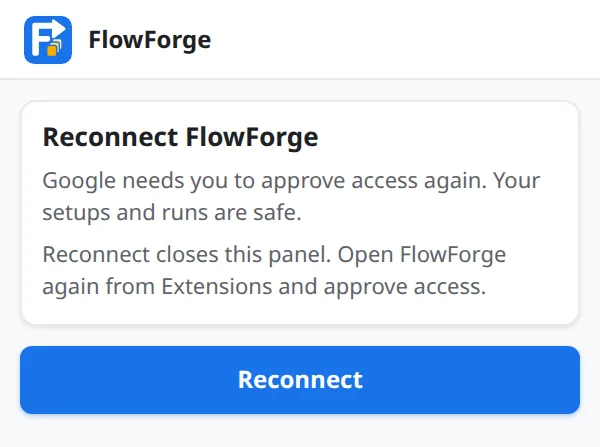
Step 5: Google needs you to sign in again
Choose Reconnect and approve access. Your setups and runs are safe.
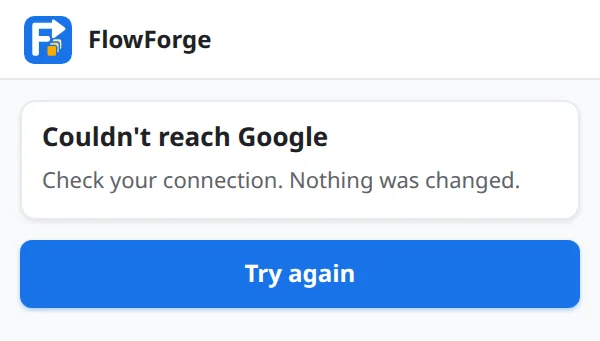
Step 6: No connection
Check your internet and choose Try again. Nothing was changed.
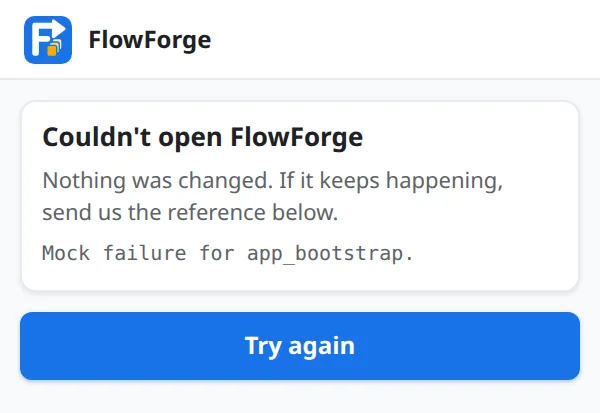
Step 7: Something else
Choose Try again. If it keeps happening, use Send feedback in Account.
Section 15
Privacy and permissions
FlowForge only opens the files you choose and keeps everything it makes in your own Google Drive.
What this covers
- It asks for access to the sheet, Doc or Slides file it is opened in, to the files you pick or it creates (not the rest of your Drive), to your email address, and to send email as you when you turn email on.
- The AI sees your template text, tab names, column names and a few example rows only when you press a button that uses it. FlowForge does not store what it sends.
- Your data is not used to train AI models, and Codeinate does not sell or share it.
- Remove access at any time at myaccount.google.com/permissions.
Step-by-step
Step 1: Read the policies
The full details are in the Privacy Policy and the Terms of Service.
Frequently asked questions
How do I start using FlowForge in Google Sheets?
Open your Google Sheet, choose Extensions, then FlowForge, then Open. Pick the tabs you want to use, pick a Google Doc or Slides template, and follow the four steps: Template, Rows, Email and Review.
What is a marker?
A marker is a placeholder such as {{Name}} or {{Invoice No}} in your Doc or Slides template. FlowForge replaces it with the value from the matching column of each row.
Can FlowForge use values from several tabs?
Yes. Turn on My tabs are connected. FlowForge matches tabs by their column names first, then can ask Google's AI about the rest. You can change any connection.
Can the AI place the markers in my template for me?
Yes. Open the template in Google Docs or Slides, choose Write a prompt, and describe what should be filled. FlowForge checks every answer against your document and sheet, saves a backup copy first, and lets you undo.
Will it make the same file twice?
No. By default it uses only rows that are not made yet and marks each finished row in your sheet. Failed files can be retried on their own.
Can I check one file before making all of them?
Yes. On the Review step choose Make 1 sample file first. It saves one real file in a Samples folder and does not change your sheet.
Can FlowForge email the files?
Yes. Turn on Email each file, choose the column that holds the address, write the subject and message with markers, and attach the PDF. Emails are sent from your own Gmail account.
What data does the AI see?
Only when you press a button that uses it: your template text, tab names, column names and a few example rows. FlowForge does not store what it sends, and your data is not used to train AI models.
Where are my files saved?
In your own Google Drive, in a new folder for every run inside FlowForge, Builds.