




What you get from an expense tracker in Google Sheets™
A real sheet in your Google Drive™
One space is one Google Sheets™ file. Entries, books, members, categories and the activity log are rows in it, so nothing is locked inside the app.
One tab per book
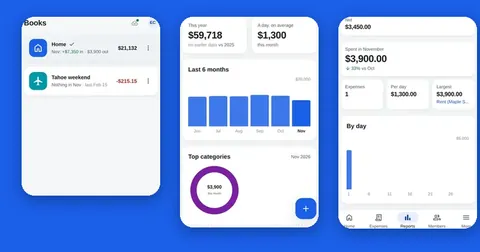
Inside a space, each book is its own tab: Home, Insurance, a trip, a renovation. A space holds up to 200 active books, and you can archive and restore them.
A form instead of typing into cells
Each entry is cash out or cash in, with an amount, a date, a book, a category, who paid, how it was paid, a party and a note. Every book keeps a running balance.
Exact amounts
Amounts are stored exactly, in whole minor units such as cents, and never as rounded decimals. You choose the currency for each space.
Reports without formulas
See a month, a year, categories or members, or compare two periods, for one book or for all of them. The home screen shows this month, the last six months and your top categories.
Narrow access to your Google Drive™
Splendly can use only the files it created and the files you pick. It does not ask for access to all your sheets or all your Google Drive™ files. How that works.
How to start a Sheets expense tracker
- 1
Look around with sample data
On the sign-in screen, choose Try with sample data. It needs no sign-in and sends nothing anywhere.
- 2
Sign in with Google
Use your own Google account. There is no Splendly account and no password.
- 3
Create a space
A space is one Google Sheets™ file in your Google Drive™. Name it after what it covers, such as Home or Team lunches, and choose its currency.
- 4
Add a book and your first entry
Make a book for one purpose, then add cash out or cash in with the form. If you have a receipt, add a photo or a file to the entry. More on receipts.
- 5
Read the reports, or open the file
Open the home screen or the reports to see where the money went. To hand something over, make a PDF statement.
Building an expense tracker by hand first
If you want to start with a plain sheet, a few columns are enough: Date, Amount, Category, Paid by and Note. Add one row for each cash in or cash out, and add the amounts up with a single SUM formula.
That is general spreadsheet advice, not a Splendly feature. When you want a form, receipts, roles and reports on top, Splendly does those and keeps your data in a Google Sheets™ file that you own.
See it on screen
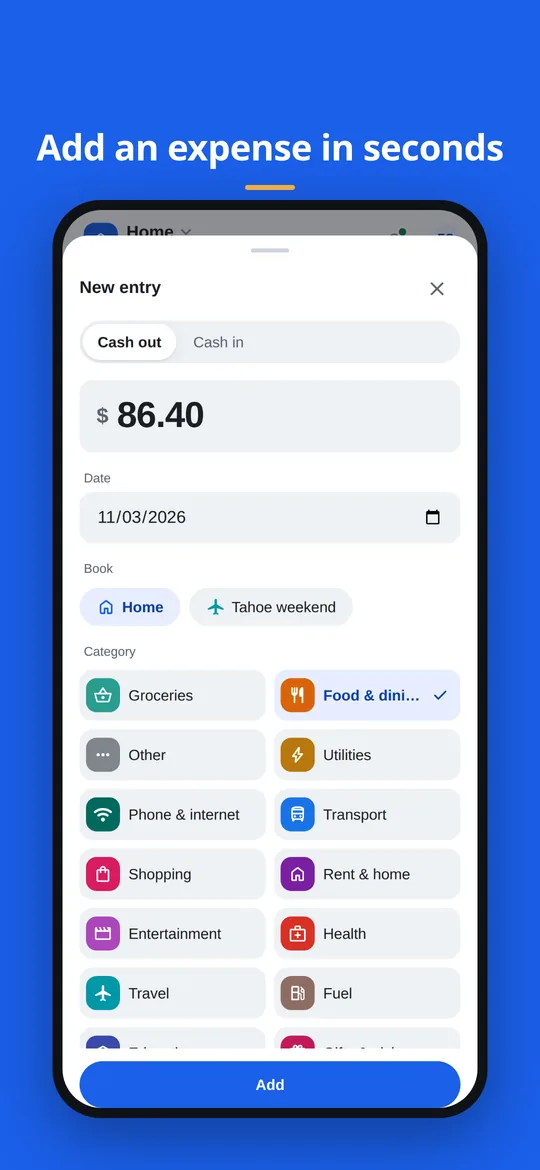
The entry form replaces typing into cells: cash out or cash in, amount, date, book and category. 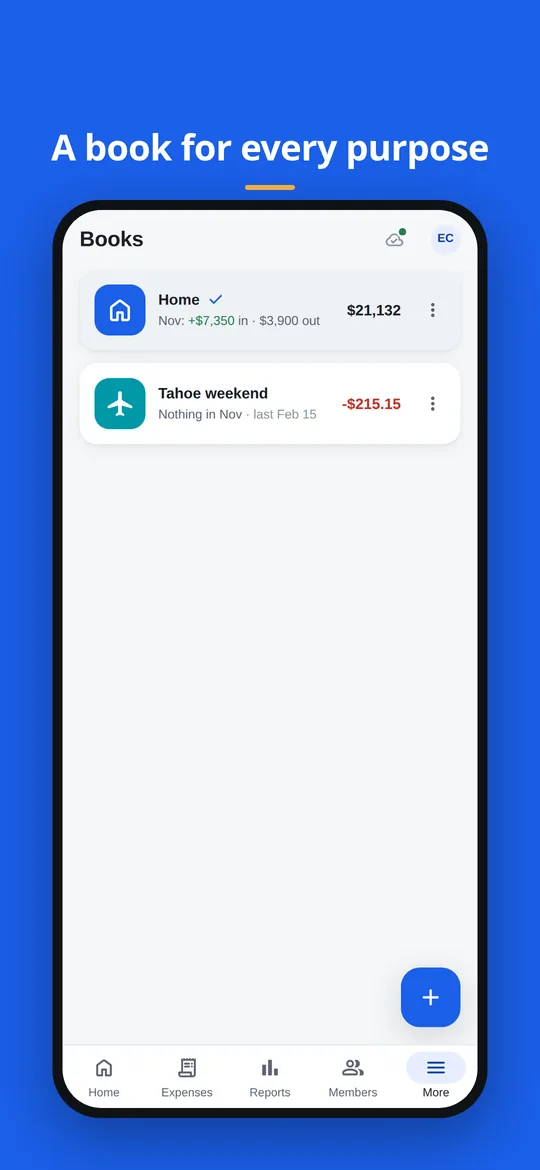
One tab per book: each book has its own balance.
A sheet you fill in by hand, or a sheet with an app on top
Both keep your data in a Google Sheets™ file that you own. What changes is how you work with it.
| Task | A sheet you fill in by hand | Splendly on top of a sheet |
|---|---|---|
| Adding an expense | Type into cells and keep the columns tidy | Fill in a form with amount, date, book, category, who paid and how |
| Receipts | Store them somewhere and note where | Take a photo or pick a file; it is saved in your Google Drive™ and linked from the entry. More on receipts |
| Reports | Build the formulas and charts yourself | Month, year, category, member and compare, with charts, for one book or all |
| Several people | Share the file and agree the rules | Owner, editor and viewer roles, and an activity log of who changed what. How sharing works |
| A statement to hand over | Print or export the sheet | A PDF with opening balance, cash in, cash out and closing balance |
In both cases the data sits in your Google Drive™. See how this compares with a notebook, bookkeeping software and a bank-linked app.
Good to know
- Splendly does not connect to a bank. You add each entry yourself, and it does not sort entries into categories for you. There are no budgets and no reminders.
- Do not sort, rename or move the app's tabs and columns. If an amount cannot be read, the app shows it as zero, and saving that entry replaces it with 0.00.
- Reports and balances are worked out on your device from the sheet.
- A space has one currency. Changing it is refused when it would rescale amounts that are already saved.
- People you share with see a space only after they open it once with Google's own file picker.
- Splendly is made for Android™ and for a modern web browser. There is no iPhone, iPad or desktop app.
Questions people ask
Is Splendly the same as a Google Sheets™ template?
No. A template is a sheet you fill in by hand. Splendly is an app that reads and writes a Google Sheets™ file for you, with an entry form, books, receipts, reports and a PDF statement. The file is still yours, in your Google Drive™.
Where is my expense data stored?
Entries, books, members, categories and the activity log are rows in the Google Sheets™ file. Receipts are files in a folder in your Google Drive™. Both belong to the person who made them. Splendly has no database of its own.
Can Splendly see my expenses?
Codeinate does not receive your entries or receipts and has no access to your Google Drive™. The app talks to Google directly from your device, with your own sign-in. In the Android™ app, the only request to Codeinate is a small public file that tells the app whether its version is still supported. The web app is loaded from Codeinate's hosting provider like any website. Codeinate runs no analytics and no ads. Security and your data.
Can I add my own formulas or charts to the file?
You can open the file in Google Sheets™ to look, make a chart or download a copy. Do not sort, rename or move the app's tabs and columns, because the app reads them.
Can I use Splendly on my phone with a Google Sheets™ file?
Yes, that is what it is made for. Splendly works in any modern web browser now, and the Android™ app (7 and newer) is coming soon. Use the same Google sign-in on both and you see the same books. There is no iPhone, iPad or desktop app.
What does Splendly ask Google for?
Your name, email and photo for sign-in, and access to the files the app created or that you picked. It does not ask for access to all your sheets or all your Google Drive™ files.
What happens to my data if I stop using Splendly?
The sheet and the receipts stay in your Google Drive™ and keep working as normal files. Remove the app's access at myaccount.google.com/permissions. To delete the data, delete the sheet and the receipts folder in Google Drive™. Step by step.
Can I try Splendly without signing in?
Yes. Try with sample data on the sign-in screen lets you look around with made-up entries. It needs no sign-in and sends nothing anywhere.
Google Sheets, Google Drive, Android and Google Play are trademarks of Google LLC. Splendly is not affiliated with or endorsed by Google.