




01Before you start
Splendly keeps your expense books in a Google Sheet™ that you own, in your own Google Drive™. There is no Splendly account and no password. You sign in with Google.
Four words are used everywhere in the app:
- Space: one Google Sheet™, for example "Home" or "Team lunches".
- Book: one purpose inside a space, for example Trip, Insurance, Kitchen renovation or Relocation. Each book is its own tab in the sheet.
- Entry: one line of money going out (cash out) or coming in (cash in).
- Member: a person who shares a space with you. A member is an owner, an editor or a viewer.
Splendly works in any modern web browser now. The Android™ app (7 and newer) is coming soon. Use the same Google sign-in on both and you will see the same books. There is no iPhone, iPad or desktop app.
02Sign in
- Open the app, or Splendly in your browser.
- Press "Continue with Google" and choose your Google account.
- Google shows what Splendly asks for. Read it, keep the Google Drive™ box ticked, and continue.
- You are in. Make a new space, or open one that someone shared with you.
Splendly asks Google for your name, email address and photo, to sign you in and to show who paid. It also asks for access to the files it creates in your Google Drive™ and the files you pick yourself. That is the drive.file permission. It does not ask for all your Google Sheets™ or all your Google Drive™ files.
The sign-in screen has two buttons: "Continue with Google" and "Try with sample data".
03Try with sample data
Not ready to sign in? Press "Try with sample data" on the first screen. You can look around the books, entries and reports without signing in. Nothing is sent anywhere, so nothing is saved to your Google Drive™.
Tip: Sample data is a tour only. When you are ready, sign in with Google and make your own space.
04Create a space
A space becomes a Google Sheet™ in your Google Drive™. It comes with a tab for each book and a folder for receipts. You own both.
- Name it for what it is: "Home", "Team lunches" or "Codeinate's wedding".
- Choose its currency. The currency is chosen for each space, and one space uses one currency. If you spend in two currencies, make two spaces.
- Amounts are stored exactly, as whole minor units (such as cents), never as rounded decimals.
It is a normal Google Sheet™. Open it in Google Sheets™ to look, make a chart or download a copy. Do not sort, rename or move the app's tabs and columns. If an amount cannot be read, the app shows it as zero, and saving that entry replaces it with 0.00.
05Books
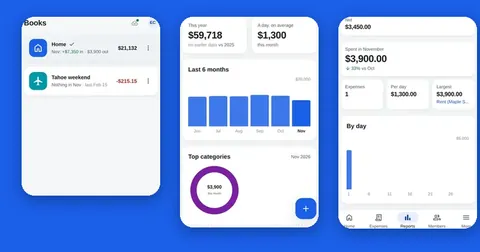
Use one book for each purpose, so each purpose has its own total. Inside one space you can have up to 200 active books, and archived books do not count. Each book shows a running balance.
- Examples: Home, Insurance, Summer trip, Kitchen renovation, Relocation.
- Finished a trip or a project? Archive the book. You can restore it later.
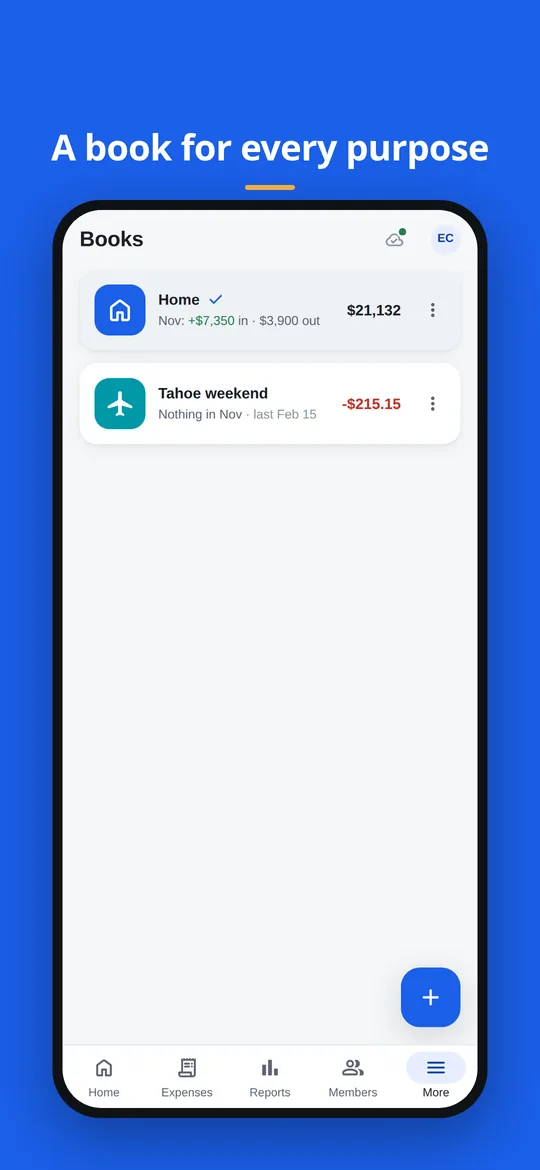
A book for every purpose, each with its own balance.
06Add cash out and cash in
- Open the new entry sheet.
- Choose Cash out for money you spent or paid, or Cash in for money you received.
- Type the amount and check the date.
- Choose the book and a category.
- Add the optional details if you want them (see the list below).
- Press Add. The entry joins the book and the running balance updates.
Each entry can hold:
- Amount and date.
- Book and category.
- Who paid: one of the members.
- How it was paid: cash, UPI, card, bank or other.
- Party: who the money went to or came from, up to 80 characters.
- Note: up to 500 characters.
- A receipt, if you have one.
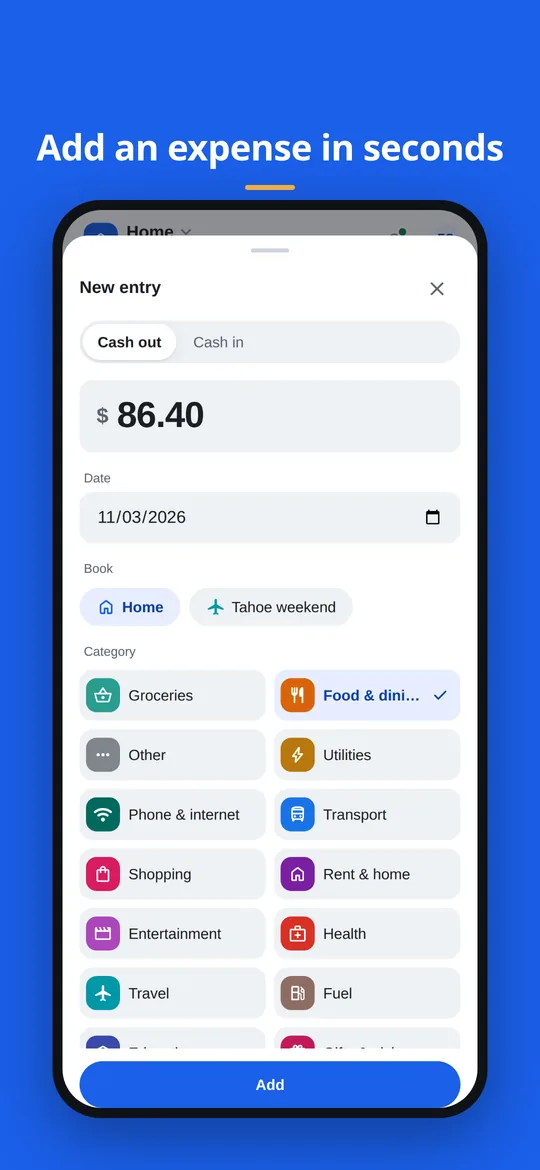
The new entry sheet. 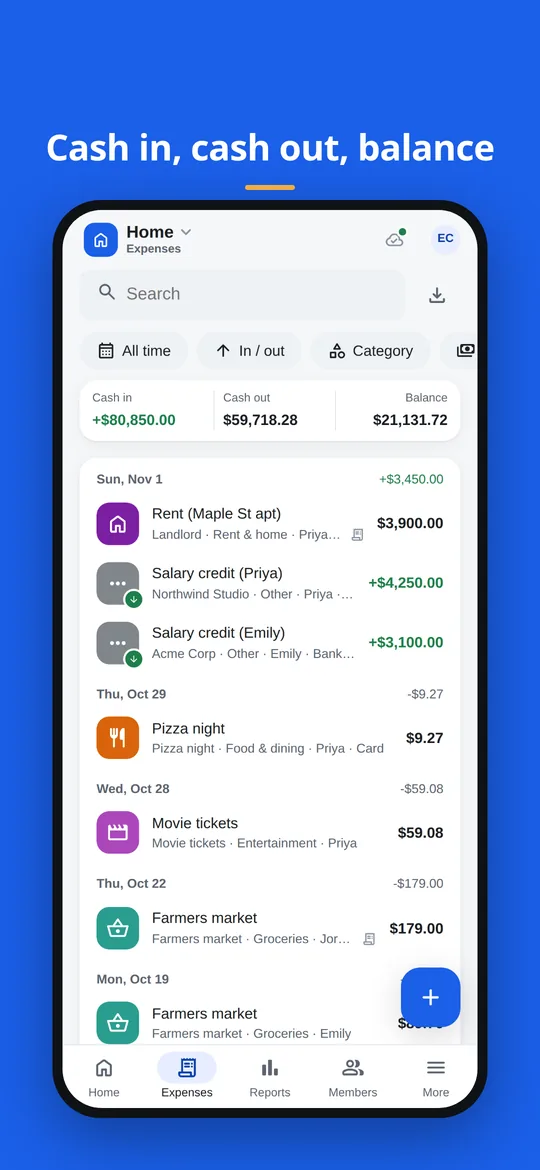
The list of entries, grouped by day, with totals.
07Find entries, categories and the activity log
Search by text or amount. Narrow the list with filters for date range, category, member, with or without a receipt, cash in or cash out, and how it was paid. You can sort the list, and "show more" brings in older entries.
Categories start with a set of defaults. You can rename them, give them a colour and an icon, archive them and restore them.
The activity log shows who changed what, and when. It helps when several people share one space.
08Receipts
- On Android™, take a photo with the camera or choose one from the gallery. On the web, pick a file.
- A receipt can be a photo, a PDF or an image file.
- The file is saved in a folder in your own Google Drive™ and linked from the entry.
- Large photos are made smaller before they are saved, so the file in your Google Drive™ may not be the full-size original. PDFs are saved as they are.
- The members of the space at the time the receipt was added open it through its Google Drive™ link. A person added later may not be able to open older receipts until the person who uploaded them shares them in Google Drive™.
- The camera permission is asked only when you tap "Take a photo".
Splendly keeps the receipt with the entry. It does not read the receipt or fill in the entry for you.
Tip: A viewer cannot change anything, so a viewer cannot add receipts either.
09Members and how a member joins
Share a space with family or a team. Every member has one of three roles:
- Owner: made the space and adds the other people. A space has one owner.
- Editor: can add and change entries.
- Viewer: can look at everything and change nothing.
To add a person, the owner types their Google email in the members screen and picks Editor or Viewer. Splendly shares the sheet with them in Google Drive™. The owner can hand the space to another member, who then becomes the owner, and the old owner becomes an editor.
How the other person joins:
- Make sure you are signed in to Splendly with the same Google email the owner used.
- Choose the option "Choose it in Google Drive™". Google's own file picker opens.
- Pick the shared space in the picker.
- That is all. From now on the space is in your list.
Google asks for this once for every shared file. It is Google's rule that an app sees only the files you pick, and it is the reason Splendly can say it never sees your other files.
When the owner removes a member in the app, Splendly asks Google Drive™ to unshare the sheet with that person (check Share in Google Drive™ to be sure). Receipts that were already shared with them are not unshared by the app, so they can still open those receipts until the person who uploaded each one stops sharing it in Google Drive™.
Handing a space to a new owner inside the app does not change who owns the file in Google Drive™. The new owner may not be able to add or remove people until the file's owner is changed in Google Drive™.
10Home screen and reports
The home screen shows this month, the last six months, top categories, who paid, recent entries and the totals by book.
Reports come as monthly, yearly, by category and by member, and you can compare two periods. Run them for one book or for all your books. Reports and balances are worked out on your device from the sheet.
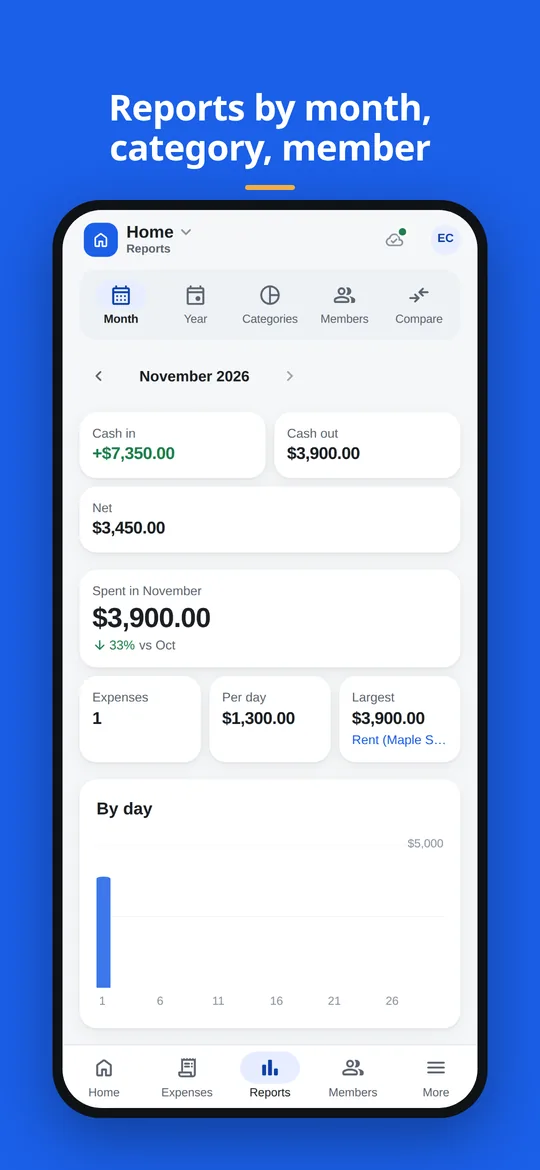
Reports for a month, with tabs for Month, Year, Categories, Members and Compare. 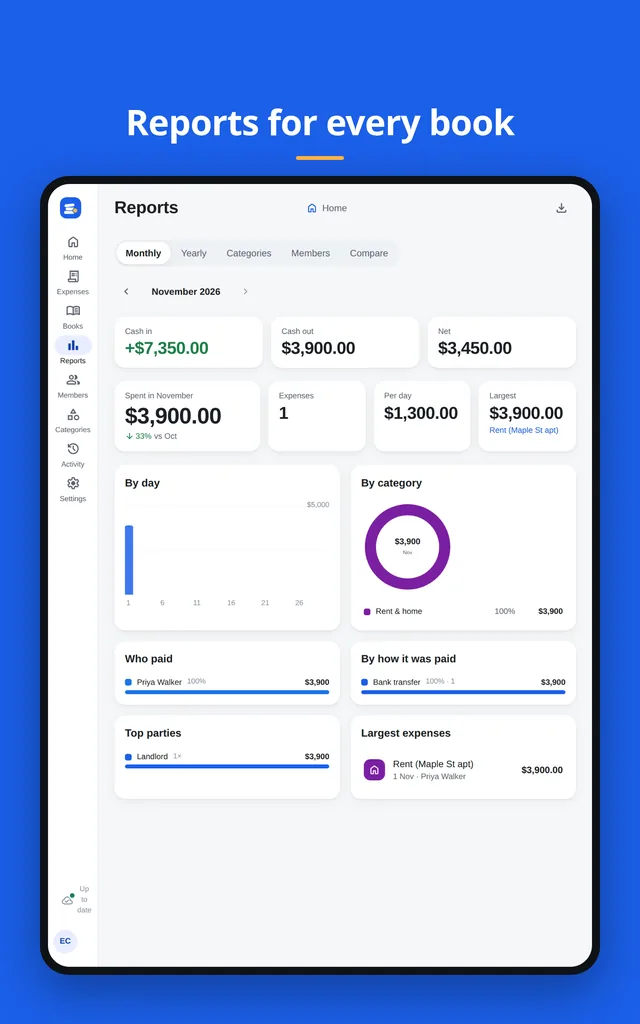
The same reports on a wider screen.
11PDF statement
- Open the export screen.
- Choose the period: this month, last month, this year, all time, or your own dates.
- Pick a book.
- Press Make PDF.
The statement shows the opening balance, cash in, cash out and closing balance, a table with the running balance, and summaries by category and by who paid. On the web the PDF is downloaded. On Android™ it opens the phone's share sheet.
Two limits to know. The PDF font has no currency symbols, so every amount is written with its currency code, for example USD 1,234.00 or GBP 1,234.00. Letters outside the Latin alphabet in notes may print as "?", and accents are dropped (José prints as Jose).
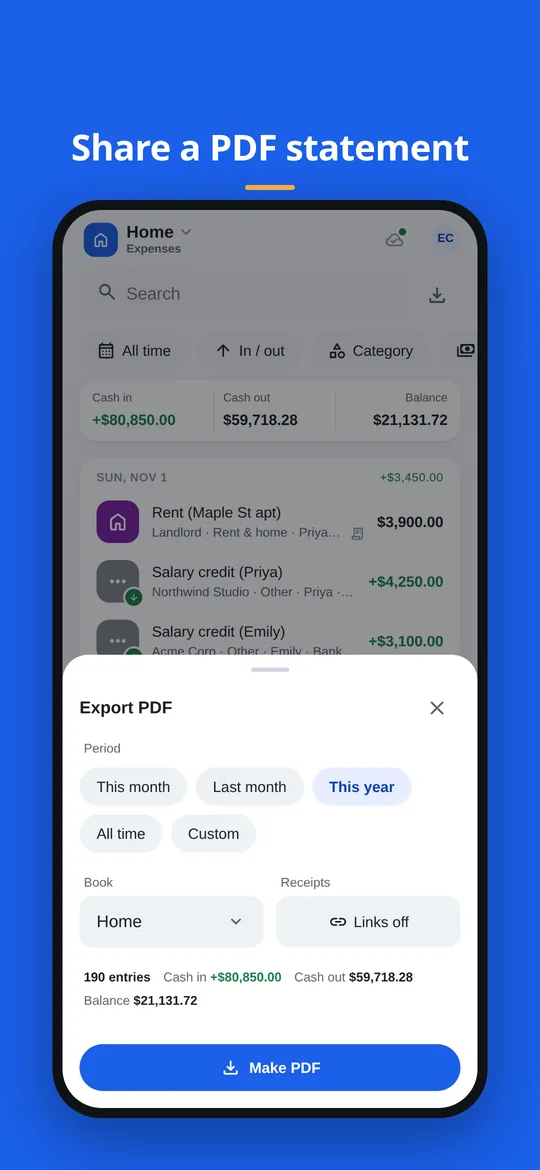
The export screen: choose a period and a book, then Make PDF.
12Offline and staying in sync
- Offline: new entries wait on your device and go into the sheet when the connection is back. Splendly retries on its own, and an entry is not added twice. If the app has had no connection at all for about a week, it asks you to go online once so it can check that its version is still supported. Your waiting entries are kept.
- Changes by other people: while the app is open it looks for them every minute, and again each time you open it or bring it to the front. There is no instant push of changes.
- Same field, two people: if two people changed the same field, Splendly shows a review with "Keep mine" and "Keep theirs".
- Rare overwrites: two people editing the same entry within the same few seconds can overwrite each other's change. When Splendly can tell, it asks you to review.
On your device the app keeps a copy of the space you have open, the entries waiting to be sent, your preferences and your sign-in token. Signing out removes your sign-in from that device. The copy of the space, any entries still waiting to be sent and your preferences stay in the app's storage, so nothing you typed is lost. They are removed when you uninstall the app, clear its storage, or sign in with a different Google account.
13Settings and choices
- Currency, chosen for each space. Splendly refuses to change it when the change would rescale the amounts you already have.
- Light or dark theme.
- Categories: rename, recolour, change the icon, archive and restore.
- Archived books: restore a book when you need it again.
- Sign out: removes your sign-in from that device.
14Delete your data
You can stop using Splendly any day. The sheet and the receipts stay in your Google Drive™ and keep working as normal files. Nothing needs deleting on Codeinate's side, because Codeinate holds none of it.
- Open myaccount.google.com/permissions, choose Splendly, then choose Remove access.
- Sign out of the app to remove your sign-in from that device. To also remove the copy of the space and any waiting entries, uninstall the app or clear its storage in your phone or browser settings.
- To delete the data itself, delete the sheet and the receipts folder in Google Drive™, then empty the bin.
Troubleshooting
Find your case below. Each one says what is going on and what to do.
I unticked the Google Drive™ box when I signed in
Why: Splendly keeps your books in a sheet in your Google Drive™, so without the Google Drive™ permission it cannot create or open a space.
- Open myaccount.google.com/permissions, choose Splendly, then choose Remove access.
- In Splendly, sign out if you are still signed in, then sign in again with Google.
- On Google's screen, keep the Google Drive™ box ticked and continue.
My phone is offline
Why: Splendly cannot reach Google Drive™ without a connection.
- Keep adding entries. They wait on your device and go into the sheet when the connection is back, without duplicates.
- Other people's new entries show up once you are online again. Open the app or bring it to the front to check straight away.
- If Splendly shows a review with "Keep mine" and "Keep theirs", someone changed the same field meanwhile. Read both and keep the right one.
The currency is wrong
Why: The currency belongs to the space, and amounts are stored exactly. Splendly refuses a change that would rescale the amounts you already have.
- In a new space with no entries, change the currency before you add anything.
- If Splendly refuses the change, make a new space with the right currency and keep your entries there from now on.
- Spending in two currencies? Use one space for each currency.
A receipt will not upload
Why: The receipt is saved as a file in a folder in your own Google Drive™, so it needs a working connection and room in your Google Drive™.
- Check your internet connection and try again.
- Check that your Google Drive™ has free space.
- Use a photo, a PDF or an image file. Other kinds of file are not receipts.
- On Android™, if the camera does not open, allow the camera when it asks, or choose a photo from the gallery instead.
- Are you a viewer in this space? Viewers cannot change anything. Ask the owner to make you an editor.
I can see the books but cannot add anything
Why: You are probably a viewer. Viewers can look at everything and change nothing.
- Ask the owner of the space to change your role to editor in the members screen.
I do not see an entry someone else added
Why: Splendly looks for other people's changes every minute while it is open, and when you open it or bring it to the front.
- Wait a minute with the app open, or leave the app and come back.
- Check that you and the other person are looking at the same space and the same book.
- Check that both of you are online. Entries added offline go in when the connection is back.
My PDF shows a currency code or question marks
Why: The PDF font has no currency symbols and cannot print every alphabet.
- Every amount is written with its currency code, for example "USD 1,234.00" or "GBP 1,234.00". That is how the PDF is made.
- Letters outside the Latin alphabet in notes may print as "?", and accents are dropped (José prints as Jose). Use plain Latin letters in notes if the PDF matters.
Questions
Do I need a Splendly account?
No. There is no Splendly account and no password. You sign in with your Google account, and your books are in your own Google Drive™.
Where is my data?
In your Google Drive™. Each space is a Google Sheet™, each book is a tab in it, and each receipt is a file in a folder. Splendly has no server that receives your entries or receipts. Security and your data.
Can I try Splendly without signing in?
Yes. Press "Try with sample data" on the first screen. It works without a sign-in and sends nothing anywhere.
Which phones and computers does it run on?
Splendly works in any modern web browser now. The Android™ app (7 and newer) is coming soon. Use the same Google sign-in on both and you will see the same books. There is no iPhone, iPad or desktop app.
How do I give someone access?
The owner adds the person's Google email in the members screen and picks editor or viewer. The person signs in with that Google account and opens the space once with "Choose it in Google Drive™".
Can I use two currencies in one space?
No. A space uses one currency. Make a separate space for each currency.
Does it work without internet?
You can keep adding entries. They wait on your device and go into the sheet when the connection is back, and an entry is not added twice. If the app has had no connection at all for about a week, it asks you to go online once so it can check that its version is still supported.
How many books can I have?
Up to 200 active books in one space. Archived books do not count, and finished books can be archived and restored.
Does Splendly connect to my bank?
No. You type each entry yourself. There is no bank login and no bank sync.
Are there ads or in-app purchases?
No. Splendly has no ads and no in-app purchases. Anonymous usage stats are off until you say yes; see what is shared.
What if I delete the sheet by mistake?
Google Drive™ keeps deleted files in its bin for a limited time. Restore the sheet from there. Codeinate keeps no copy of your data and cannot bring it back, so once Google removes it for good, it is gone.
How do I stop using Splendly?
Remove its access at myaccount.google.com/permissions and sign out of the app. Your sheet and receipts stay in your Google Drive™. Delete them there if you want them gone.
Why does my PDF show a currency code instead of a symbol?
The PDF font has no currency symbols, so every amount is written with its currency code, for example USD 1,234.00. The amounts themselves are the same.
Still stuck?
Write to support@codeinate.com. Say what you were doing, what you expected and what happened instead. The contact page lists what helps most.
Google Sheets, Google Drive, Android and Google Play are trademarks of Google LLC. Splendly is not affiliated with or endorsed by Google.