




How receipts are kept
A photo or a file
On Android™ you can take a photo with the camera or pick one from the gallery. On the web you choose a file. A PDF or an image file both work.
Saved in your own Google Drive™
The file goes into a folder in the Google Drive™ of the person who added it. It belongs to that person, not to Splendly.
Linked from the entry
The entry holds a link to the file, so the bill is always next to the amount it explains.
Other members can open it
The members of the space at the time the receipt was added open it through its Google Drive™ link. How sharing works.
Find what is missing
Filter the list to entries with a receipt or without one, so you can see which bills still need a photo.
Only the files it needs
Splendly can reach the files it created and the ones you pick. It does not ask for access to all of your Google Drive™. Security and your data.
How to attach a receipt
- 1
Start an entry
Open the new entry sheet and fill in the amount, the date, the book and the category.
- 2
Add the receipt
On Android™ choose Take a photo, or pick a photo or file you already have. On the web, choose a file. The phone asks for camera permission only when you tap Take a photo.
- 3
Save the entry
The entry goes into your sheet, and the receipt is saved in a folder in your Google Drive™ with a link from the entry.
- 4
Open it when you need it
Open the entry later to see its receipt. Other members of the space open the same file through its Google Drive™ link.
See it on screen
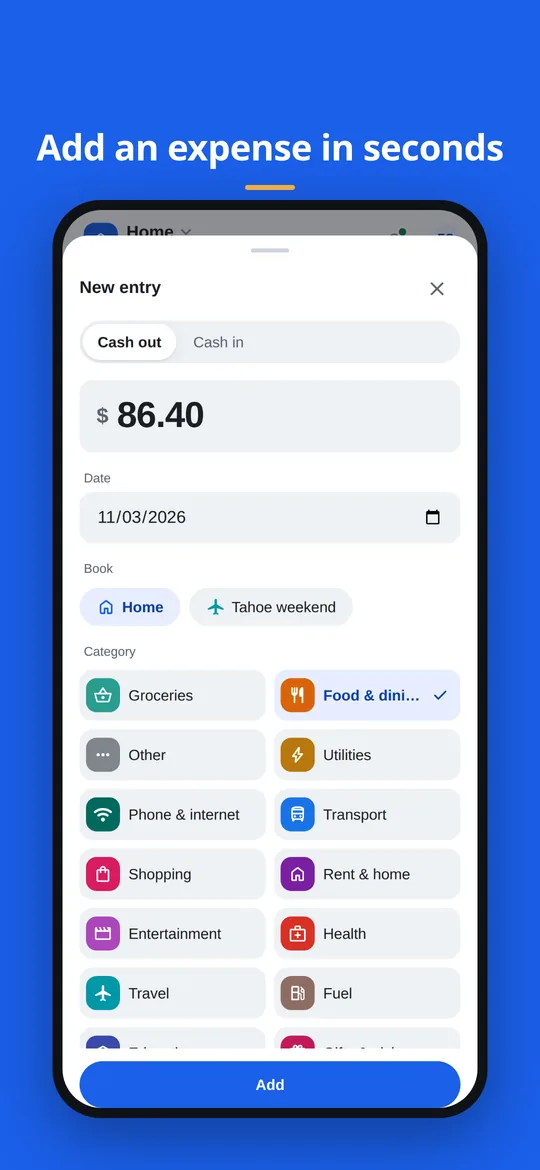
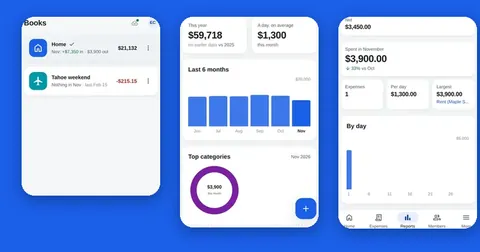
The new entry sheet: amount, date, book and category. The receipt goes with the rest of the entry. 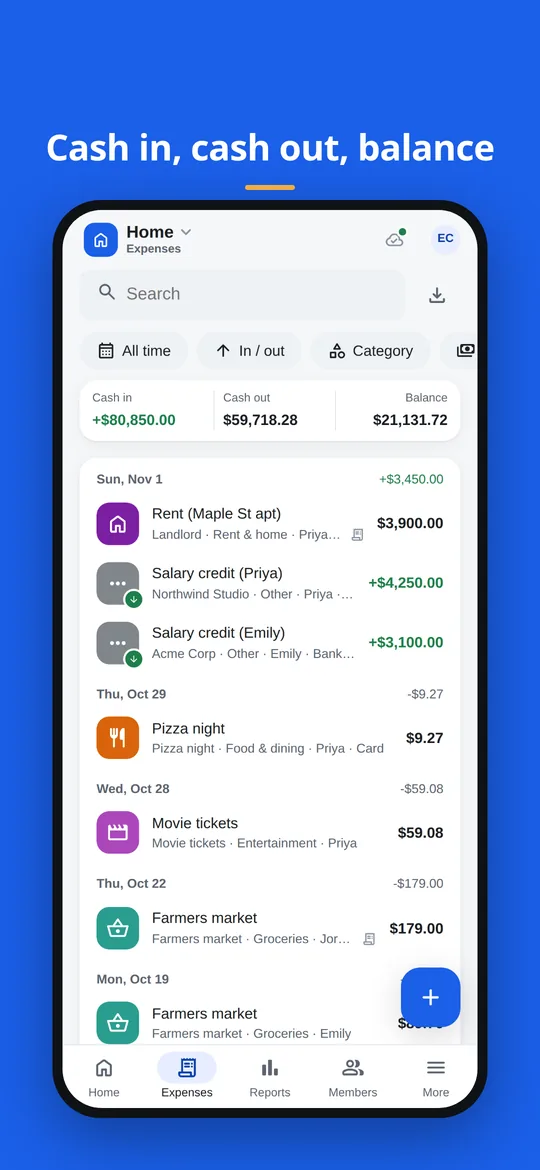
The expenses list. Entries that have a receipt carry a small receipt mark.
Good to know
- Splendly does not read receipts. There is no scanning and no AI, so you type the amount, the date and the category yourself.
- Large photos are made smaller before they are saved, so the file in your Google Drive™ may not be the full-size original. PDFs are saved as they are.
- A receipt is a file in the Google Drive™ of the person who uploaded it. If they delete that file or its folder, the link in the entry has nothing left to open.
- A receipt is shared with the members of the space at the moment it is added. A person added later may not be able to open older receipts until the person who uploaded them shares them in Google Drive™.
- A member sees a shared space only after opening it once with Google's own file picker.
- If you remove a member, Splendly asks Google Drive™ to unshare the sheet with them. If Google does not accept that (for example when the file's Drive owner is someone else), they can keep access, so check Share in Google Drive™. Receipts that were already shared with them are not unshared by the app, so they can still open those receipts until the person who uploaded each one stops sharing it in Google Drive™.
- Handing a space to a new owner inside the app does not change who owns the file in Google Drive™. The new owner may not be able to add or remove people until the file's owner is changed in Google Drive™.
Questions people ask
Where are my receipt photos stored?
In a folder in your own Google Drive™, the Google Drive™ of the person who added the receipt. Splendly has no server that receives your receipts.
What can I attach to an entry?
A photo, taken with the camera or picked from the gallery on Android™, or a PDF or image file chosen with the file picker on the web.
Can the people I share with see my receipts?
Yes. The members of the space at the time the receipt was added open it through its Google Drive™ link. A person added later may not be able to open older receipts until the person who uploaded them shares them in Google Drive™. Viewers can look at what is shared with them, but they cannot change anything.
Does Splendly read the receipt and fill in the amount?
No. Splendly has no receipt scanning and no AI. You enter the amount yourself, and the receipt stays attached to the entry as a record.
Is the photo saved at full size?
Large photos are made smaller before they are saved, so the file in your Google Drive™ may not be the full-size original. PDFs are saved as they are.
Does Splendly need access to all my Google Drive™ files?
No. It asks only for the files it created and the ones you pick, plus your name, email and photo for sign-in. It does not ask for access to all your spreadsheets or all your Google Drive™ files. Codeinate does not receive your receipts and has no access to your Google Drive™.
When does the app ask to use my camera?
Only when you tap Take a photo to add a receipt. If you never do, it never asks.
Can I find entries that have no receipt?
Yes. The filters include entries with or without a receipt, next to text, amount, date range, category, member, cash in or out, and how it was paid.
What happens to my receipts if I stop using Splendly?
They stay in your Google Drive™ and keep working as normal files. To remove the app's access, visit myaccount.google.com/permissions. To delete the data, delete the sheet and the receipts folder in your Google Drive™. Step by step.
Google Sheets, Google Drive, Android and Google Play are trademarks of Google LLC. Splendly is not affiliated with or endorsed by Google.