




What is in the expense report
Opening and closing balance
The statement starts with the balance before the period and ends with the balance after it, so the period adds up from top to bottom.
A running-balance table
A table shows how the balance moves through the period, so a reader can follow it from the first entry to the last.
A summary by category
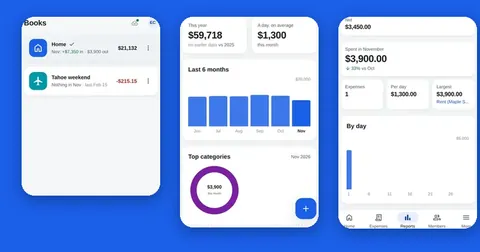
A summary by category shows where the money went, which is handy when someone asks why a month cost what it did.
A summary by who paid
A summary by the member who paid shows who put in what, useful for a household, a club or a trip.
Your period, your book
Choose this month, last month, this year, all time or your own dates, for the book you pick.
Download or share
On the web the PDF downloads. On Android™ it goes to the share sheet, so you choose where to send it.
How to make the PDF
- 1
Open Export PDF
From the expenses screen, open the Export PDF sheet.
- 2
Choose the period
Pick This month, Last month, This year or All time. Pick Custom to type your own start and end dates.
- 3
Choose the book
Pick the book. Under the choices the sheet shows how many entries fall inside the period, with cash in, cash out and balance, so you can check before you make the file.
- 4
Press Make PDF
Splendly builds the statement from the entries in your sheet.
- 5
Download or share it
On the web the file downloads, ready to attach to an email. On Android™ the share sheet opens, and you choose the app that sends it.
See it on screen
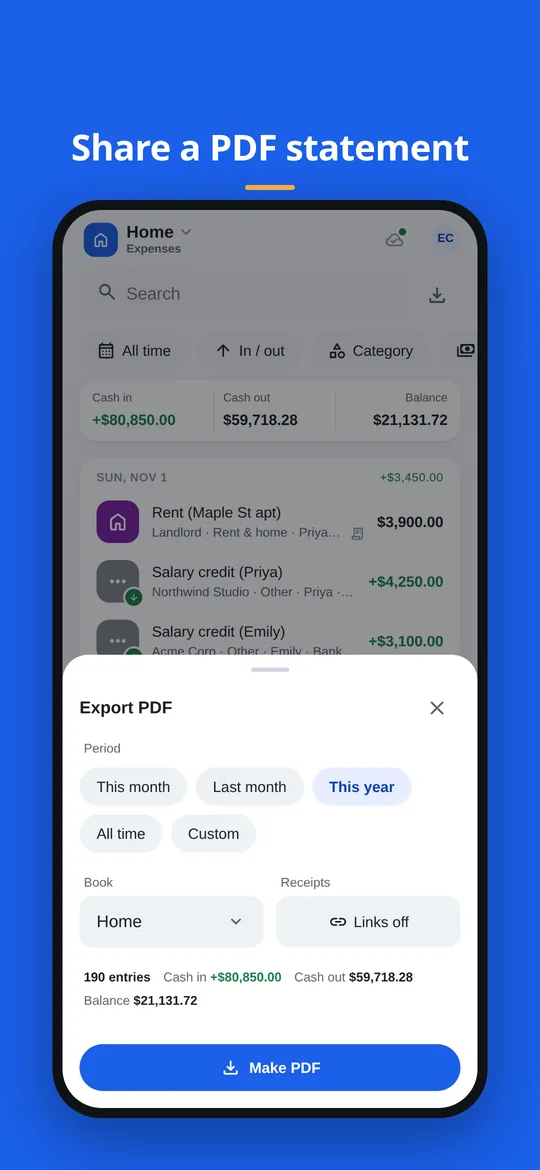
The Export PDF sheet: the period, the book and the Make PDF button, with the totals for what will be included.
Good to know
- The PDF font has no currency symbols, so every amount is written with its currency code, for example USD 1,234.00 or GBP 1,234.00.
- Letters outside the Latin alphabet in notes may print as ?, and accents are dropped (José prints as Jose). Look over a PDF that has such notes before you send it.
- Balances and reports are worked out on your device from the sheet.
- Each space has one currency, so a statement covers one currency.
Questions people ask
How do I make an expense report as a PDF?
Open Export PDF from the expenses screen, choose the period and the book, and press Make PDF. On the web the file downloads. On Android™ the share sheet opens.
What is in the PDF statement?
The opening balance, cash in, cash out and the closing balance, a running-balance table, and summaries by category and by the member who paid.
Can I make a statement for one month or one trip only?
Yes. Choose This month or Last month, or pick Custom and type the dates. For a trip, pick the book you made for it and the days it covers. More on the trip book.
Can I email the PDF to my accountant?
Yes. On the web, attach the downloaded file to an email or a message. On Android™ use the share sheet that opens after Make PDF, and pick the app you want. You can also add your accountant to the space as a viewer, so they see the entries themselves and cannot change anything.
Why does my PDF show a currency code instead of a symbol?
The font used in the PDF has no currency symbols, so every amount is written with its currency code, for example USD 1,234.00. The amounts themselves are the same.
Why do some letters in my notes show as question marks?
The PDF font does not cover letters outside the Latin alphabet, so notes in other scripts may print as a question mark, and accents are dropped (José prints as Jose). Check such a PDF before you send it.
Does Splendly keep a copy of my statement?
Splendly has no server that receives your entries or amounts, so there is no copy on Splendly's side. The statement is made for you to download or share.
Google Sheets, Google Drive, Android and Google Play are trademarks of Google LLC. Splendly is not affiliated with or endorsed by Google.