




01Install
- Copy the Sellnest template Sheet into your own Google Drive™.
- Open the Shop menu in the Sheet. Google asks for permission. Tick every box on Google's screen. If one box is left empty, part of the shop will not work, and Google does not ask again until you start over.
- The first run makes the tabs the shop needs (products, orders, coupons, settings) if they are missing.
- Open the Shop panel to see today's orders at a glance. Example: 3 orders to pack, 1 waiting for payment.
02Publish
The Publish checklist shows five checks that must pass before the first launch, worked out from your settings, products and policy pages. Example: "Add at least one product" stays red until you add one.
When all five are green, press Publish and copy the shop link. You can also share it as a QR poster or in a chat app.
03The editor
Edit your pages in a live preview. Double-click words or a picture to change them in place. A small bar gives bold, italic, underline, a list, size and align.
Pick one of 8 looks, an accent colour, corner style and the product grid. The header and footer (logo, short text, menus up to 8 links each) are edited in the same place.
Changes save by themselves after you stop typing for a few seconds, and earlier versions can be restored.
04Products, options and facts
Add a product with a name, price, stock and pictures (by web address). Example: Lemon Drizzle Cake, 18.00, 6 in stock.
Options: colour, size, flavour or box. Up to 30 combinations per product, each with its own code, price and stock.
Facts: allergens, weight and how long it keeps. Shoppers read them under the Add to cart button.
Every field is checked in plain words next to the field. Products can be hidden, shown or copied. Stock changes go through a stock log, so you can see who changed what.
05Orders and statuses
An order moves through: needs your yes, new, confirmed, packed, shipped, delivered. It can also be cancelled, refused or returned.
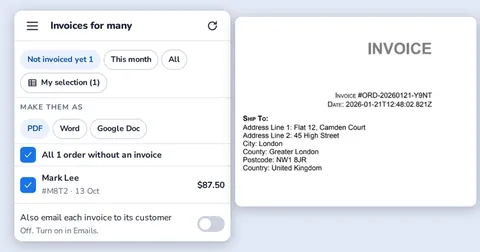
Mark paid makes the invoice, with numbers in order and no gaps. An invoice is kept even if a paid order is cancelled later.
You can edit an order after it is placed, record a full or part refund (the amount is kept), and add an order yourself for a customer who phoned or messaged you.
The shopper has a private order page with the invoice once paid. Shoppers can also look an order up with its number and email.
06Delivery days and the prep list
Turn on delivery days in Settings: days to prepare (0 to 14), an order-by hour and the weekdays you are closed. Example: 2 days to prepare, order by 15:00, closed on Sunday.
An order placed at or after the order-by hour counts from the next day. The shopper sees the earliest day and picks a day inside the next three months. A day that does not work is refused in plain words, with the earliest day shown.
The prep list shows, for each day, the open orders and the total of each item. Example: Tuesday, 14 lemon cakes and 6 bread loaves.
07Coupons
Make a code, set what it takes off and who can use it. The form prices a sample cart so you see the result first.
A coupon never takes free delivery away: free delivery is worked out before the coupon is taken off.
08Shop policies
Privacy, terms, shipping and returns, refunds and a cookie notice start from a template for your country, and you edit the words. Shoppers see a page only after you confirm it.
These are templates for your shop. They are not legal advice. Codeinate's own policies are on the privacy and terms pages.
09Staff and roles
Add people by their Gmail™ address. The owner can change everything. A manager runs orders, products and the editor. Other staff see and handle orders.
The shop always keeps at least one owner. Only the owner changes settings, staff and message templates.
10Backups and old orders
The Health page shows what is used and whether anything needs attention. Backups can be previewed before a restore, and a safety copy is made first.
Old finished orders (delivered, cancelled, refused, returned) can be moved to a tab for that year so the live list stays fast. An order with a payment claim or a refund owed is never moved.
11Accountant file
On the Reports screen, pick a month and download a CSV of its orders: money, tax, payment, invoice numbers. Archived years are included.
12Troubleshooting
Part of the shop does not work after install. A permission box was left empty on Google's screen. Remove the shop's access in your Google Account, then run it again and tick every box.
The shop says it is busy. Google is slow or another order is being written. Wait a moment and try again. A double tap makes one order.
Order mails stopped. Google limits mail per day. The shop stops shopper mails when 5 are left, so a sign-in code can always be sent. They continue the next day.
I changed the Sheet by hand and something looks wrong. Open Shop, then Check my Sheet. It lists missing tabs or columns, prices or stock typed as text, repeated order numbers and orders to look at. Hand edits to orders and stock are named in the Activity list.
A shopper cannot find an order. They need the order number (for example 1046) and the email used on the order. After 8 wrong tries in an hour they must wait an hour.
13Delete your data
See the delete page. Your shop is your own Sheet, so you can delete it yourself at any time.
Google Sheets™, Google Drive™, Gmail™ and Google Apps Script™ are trademarks of Google LLC. Sellnest is not affiliated with or endorsed by Google. Codeinate is a member of Google Cloud™ Partner Advantage.